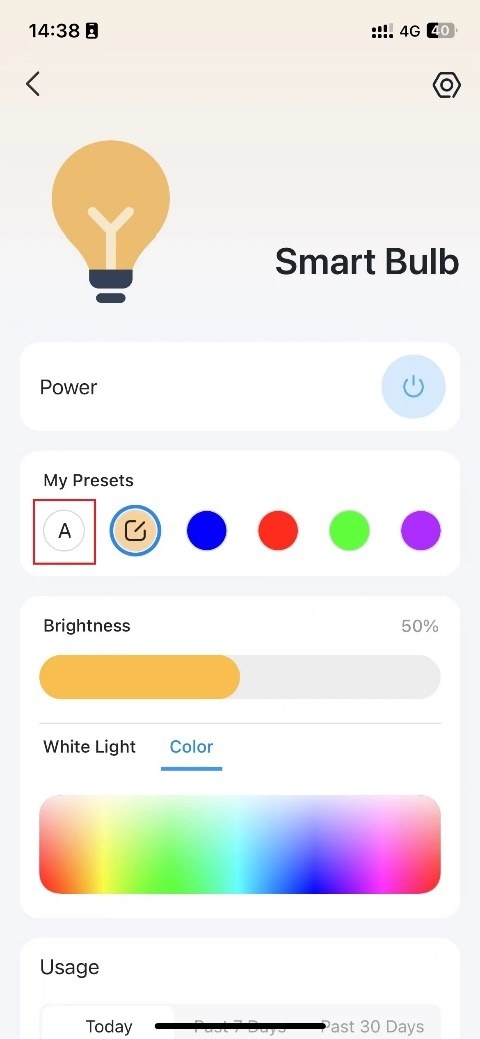
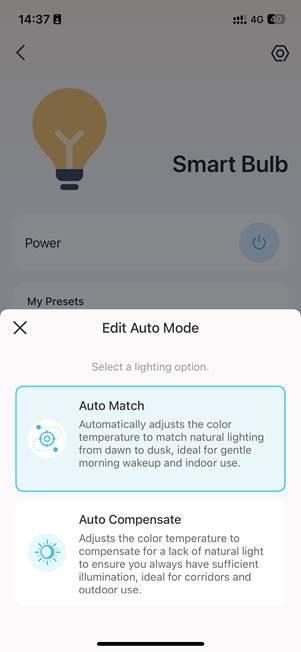
Auto White changes a Tapo smart multicolor bulb’s color temperature based on local time. It offers two modes: Auto Match and Auto Compensate.
Note: Auto White is available only for Tapo multicolor bulbs.
Auto Match
Auto Match follows the natural progression of daylight, keeping the bulb on throughout the day while gently shifting between Warm white and Daylight white and adjusting brightness automatically. It suits indoor lighting and a gentle morning wake-up.
- Half an hour before sunrise: Warm white at 5% brightness.
- Half an hour after sunrise: Nature white at 50% brightness.
- Noon: Daylight white at 95% brightness.
- Half an hour before sunset: Nature white at 50% brightness.
- Half an hour after sunset: Warm white at 50% brightness.
- Midnight: Warm white at 5% brightness.
Auto Compensate
Auto Compensate supplements limited natural light by switching the bulb on at night and off in the morning. It is intended for corridors and outdoor use.
- Sunrise: Nature white at 95% brightness.
- One hour after sunrise: Light off.
- One hour before sunset: Light off.
- Sunset: Nature white at 95% brightness.
Enable Auto White
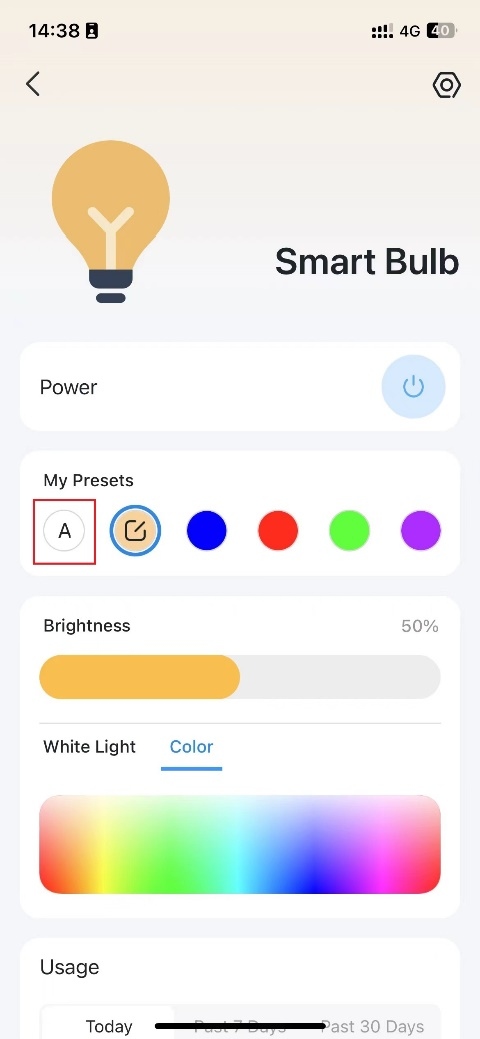
- Open the smart bulb’s Status page.
- Under my Presets, tap the “A” icon and select your preferred mode.
Troubleshooting
What if Auto White does not change the light at the expected time?
First, switch your phone to 4G/5G and check whether you can access the bulb in the Tapo app.
- If it is offline, consult What should I do if my Tapo smart devices keeps losing connection or going offline? | TP-Link.
- If it is online but Auto White still fails to work, contact TP-Link technical support for help.