The Tapo app lets you set up your Tapo smart Wi-Fi bulb and control it remotely. Follow this process to connect it to your home network.
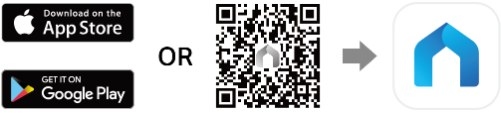
- Download the Tapo app from Google Play or the Apple App Store, or scan the QR code below.
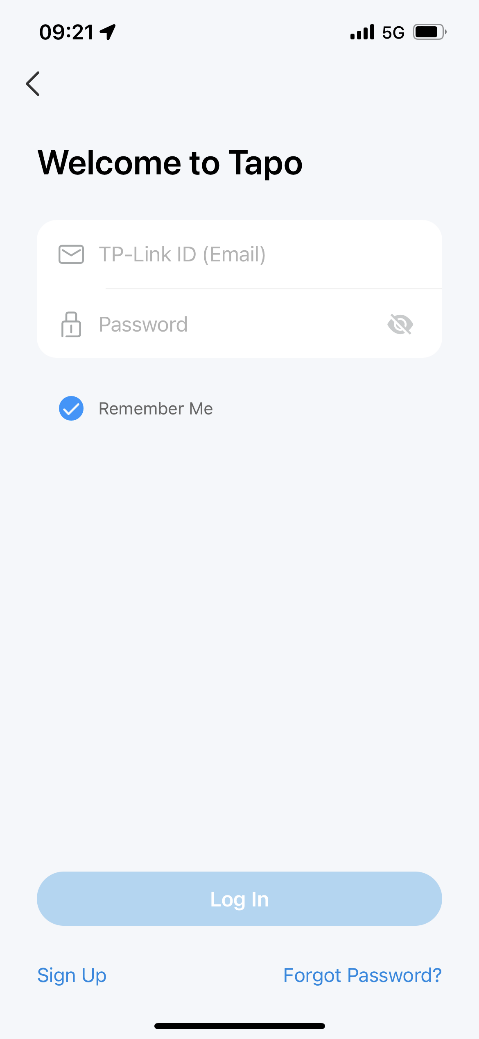
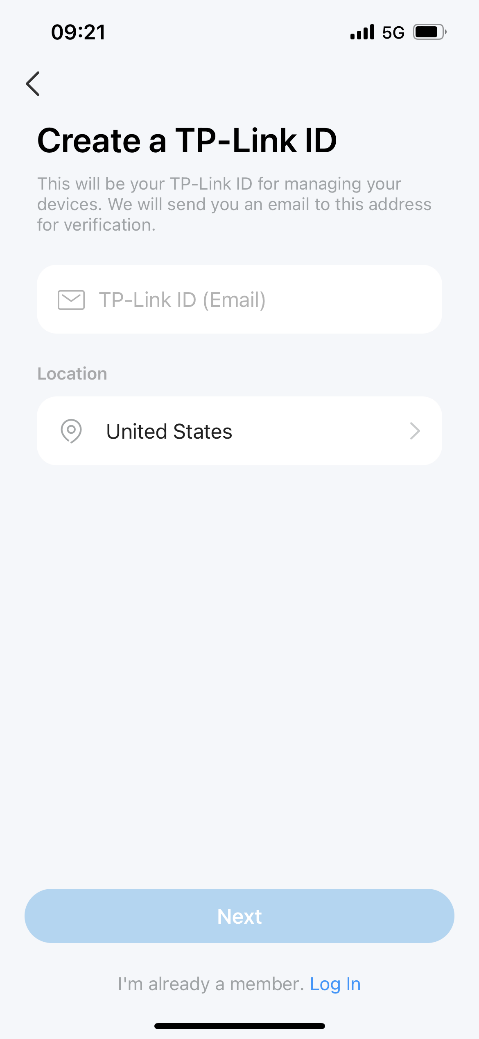
- Launch the app and log in with your TP-Link ID. If you need an account, tap Sign Up and follow the prompts.
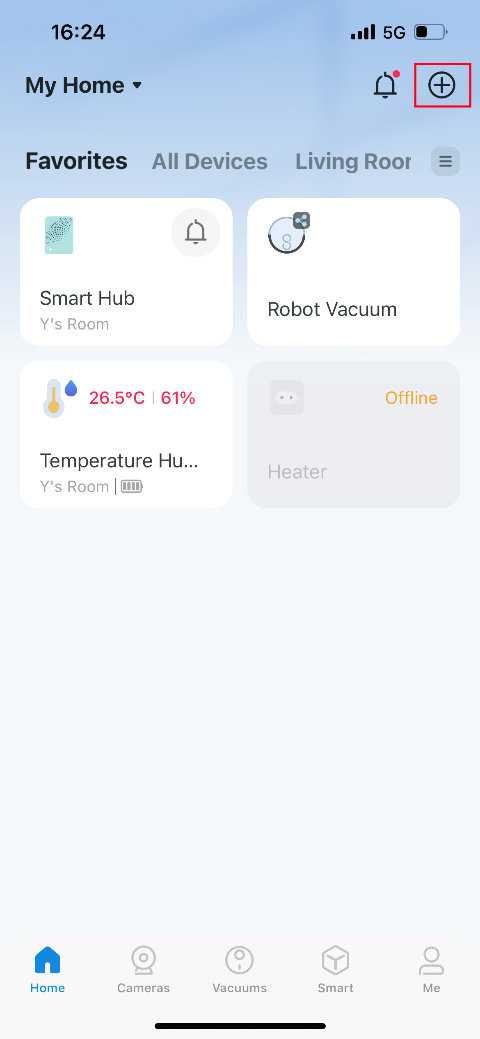
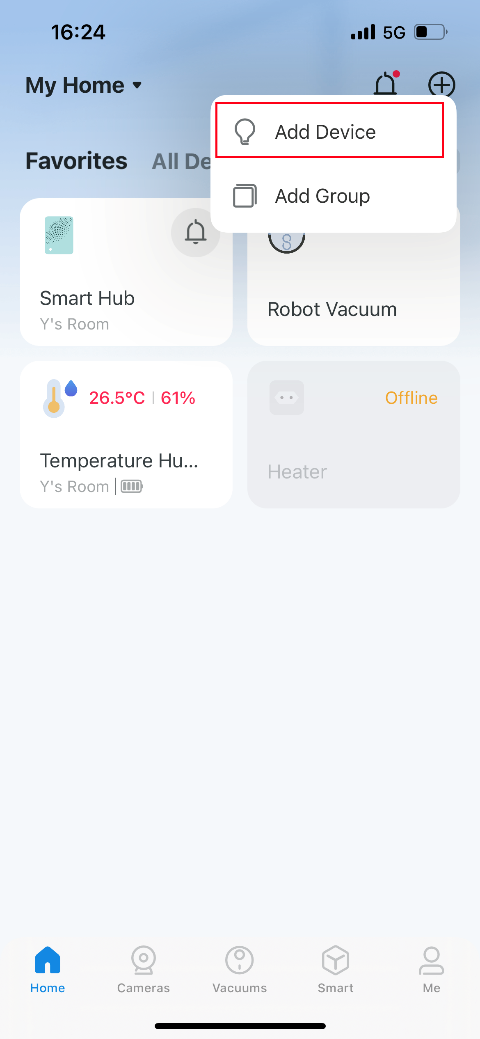
- Tap +, then choose Add Device.
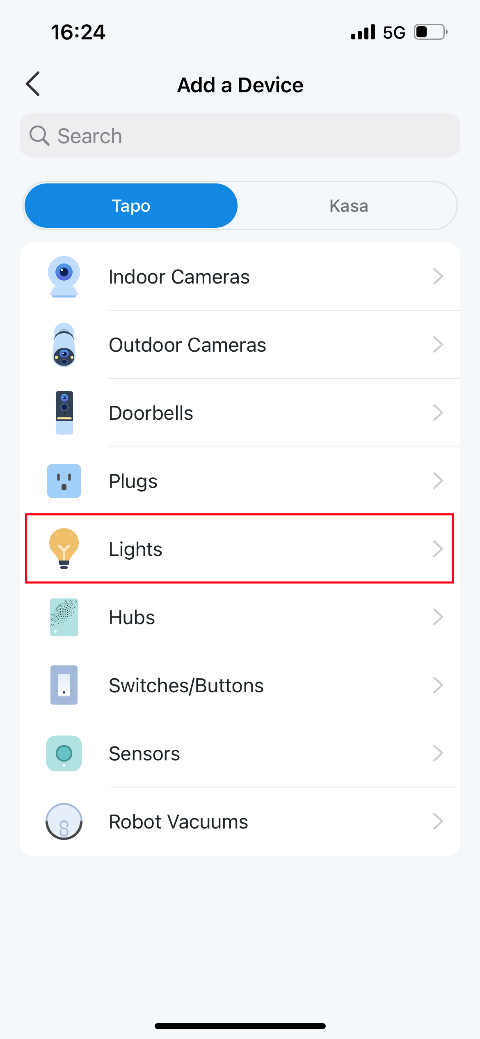
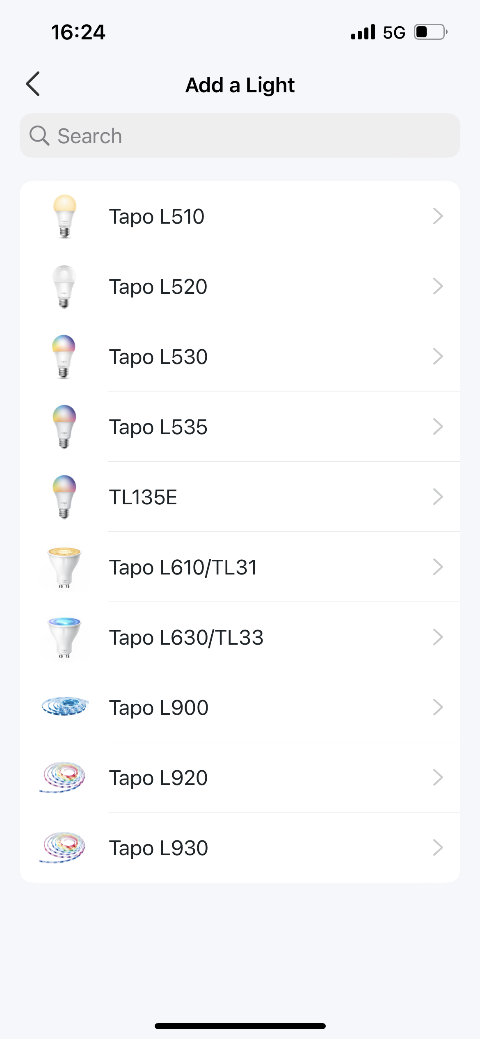
- Choose Lights and select your model. This example uses Tapo L535E.
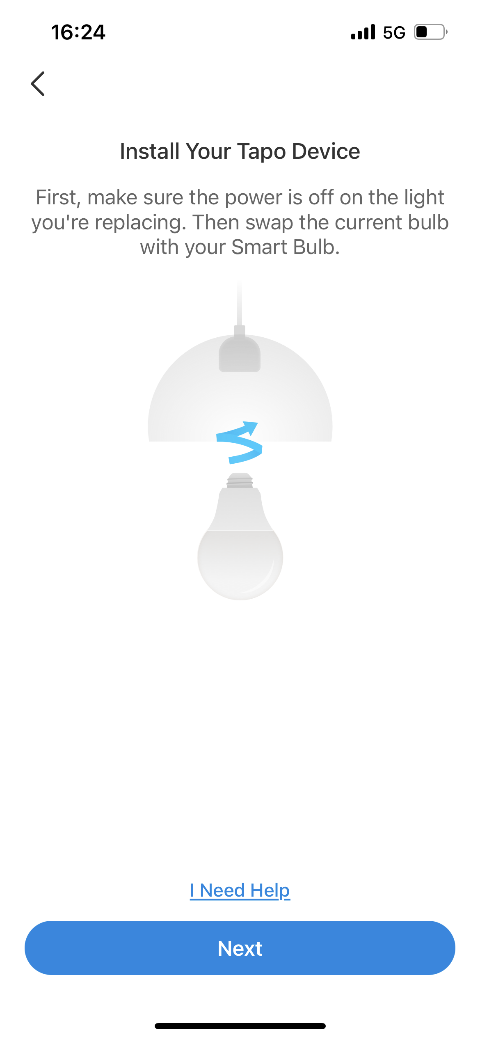
- Install the bulb, turn on its power and wait for three blinks. Keep your phone or tablet close to the bulb throughout setup. If it does not blink as expected, tap My Smart Bulb didn’t blink.
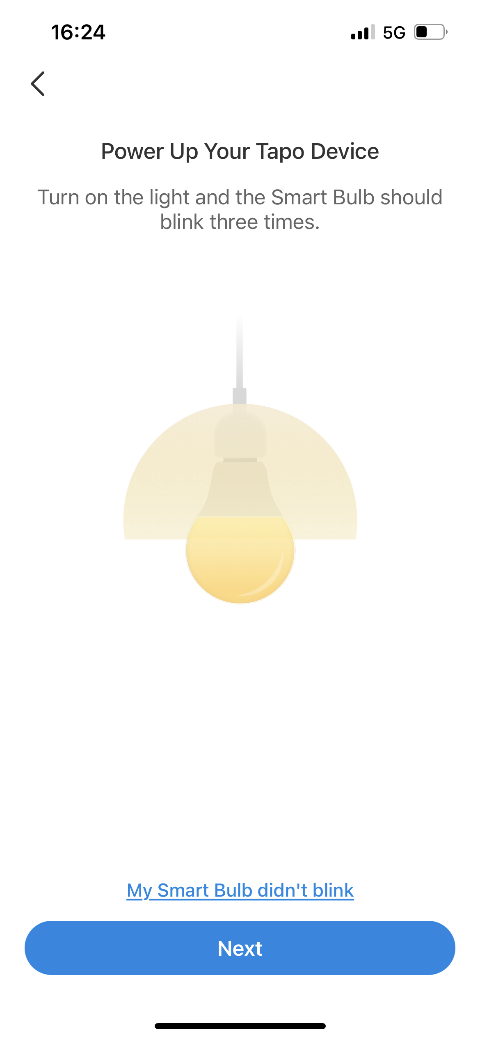
- For the Bluetooth setup shown here, enable Bluetooth so the app can discover the bulb automatically.
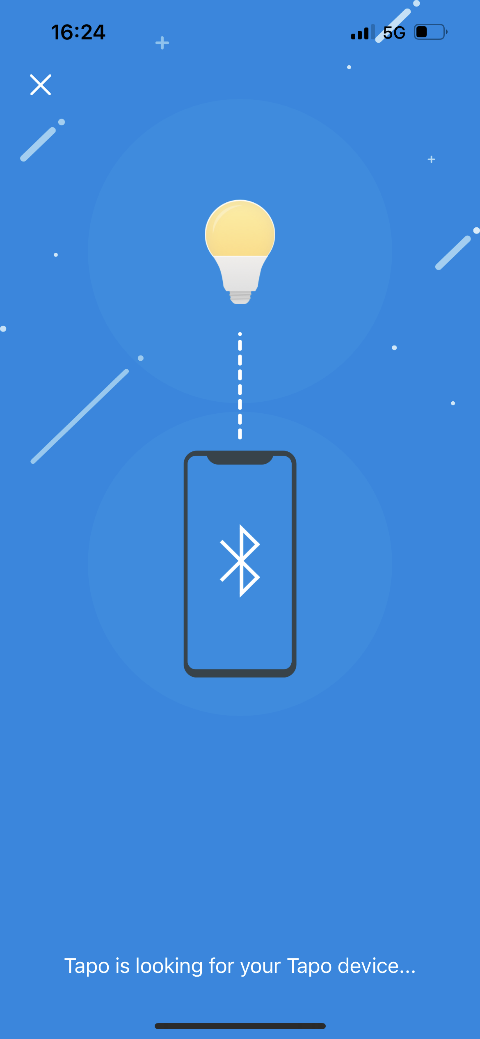
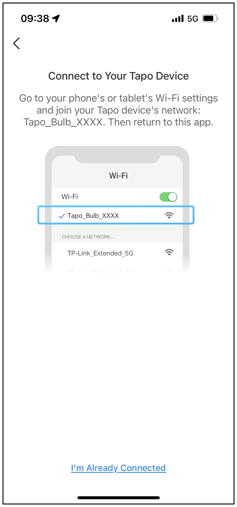
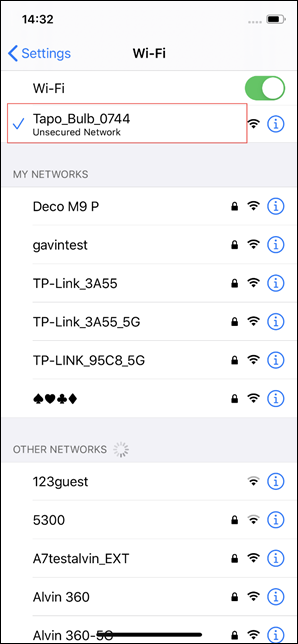
Some models instead require you to open your phone’s Wi-Fi settings, connect to Tapo_Bulb_XXXX, then return to the Tapo app.
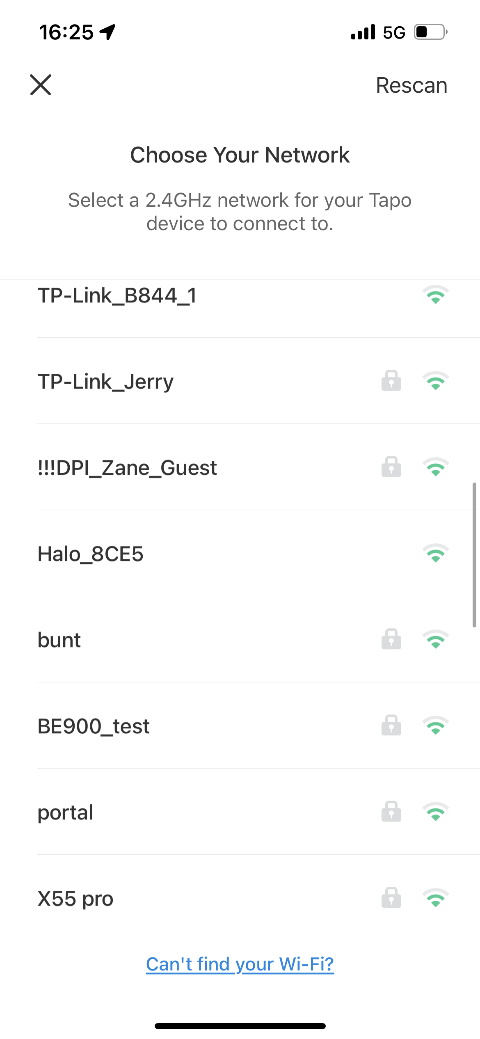
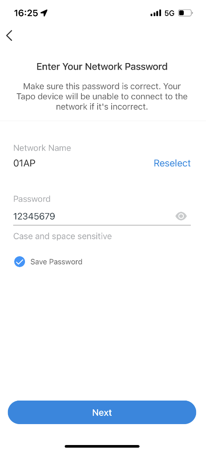
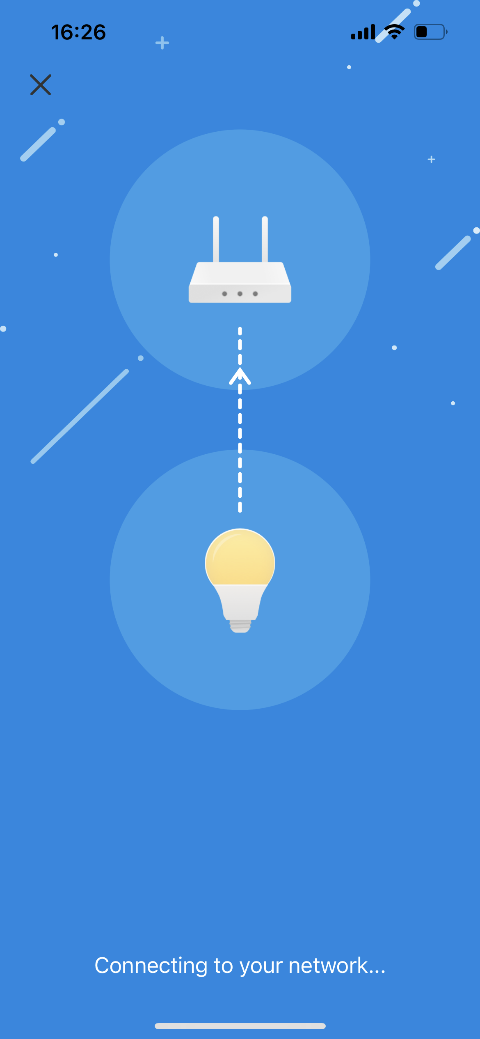
- Select your home network and enter its password. Use the eye icon to check the password if needed, then tap Next to connect the bulb.
- Assign a name and location, then customize the icon so the bulb is easy to identify.
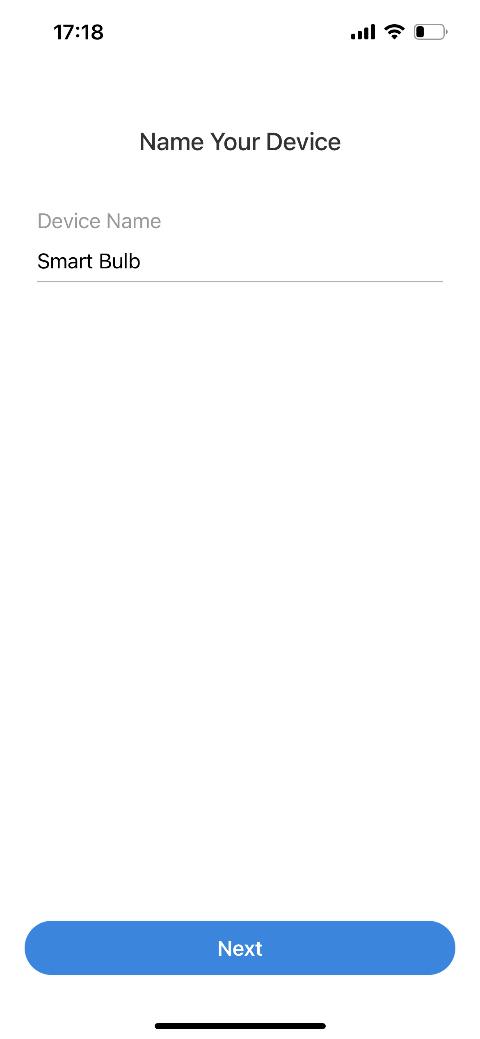
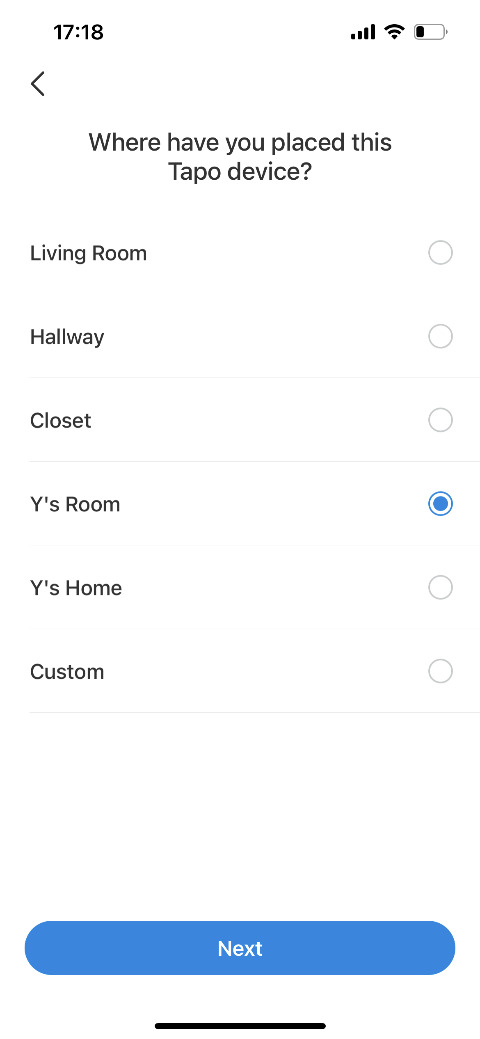
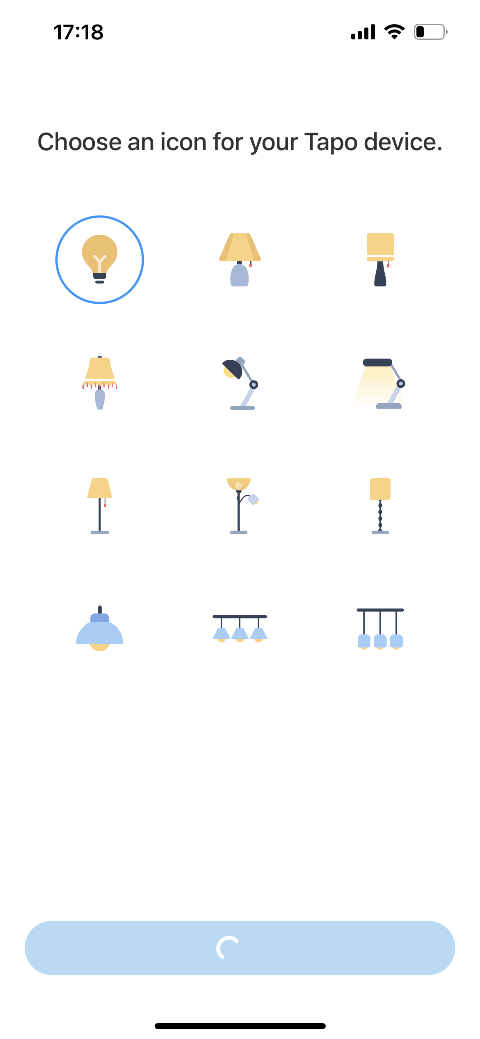
- Check for the latest firmware and install available updates for optimum performance. Set the bulb’s update schedule.
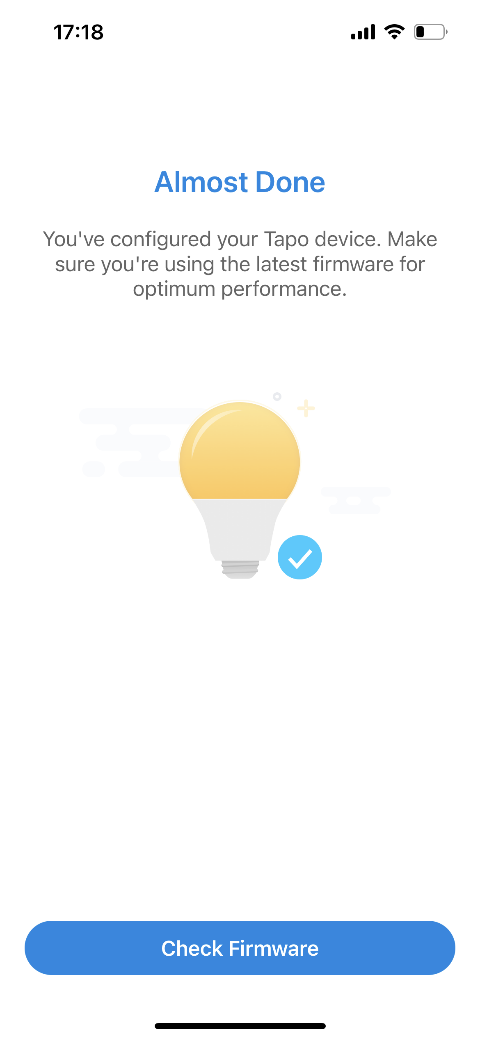
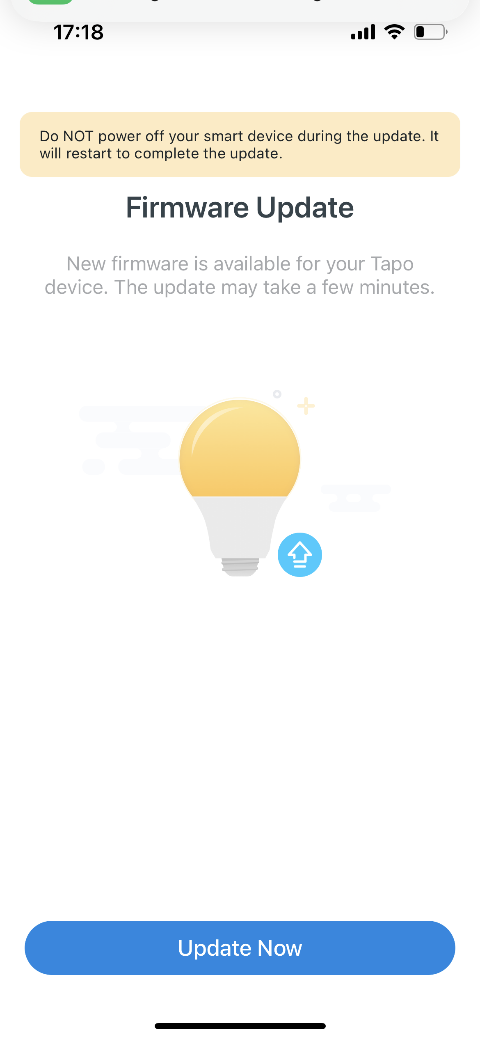
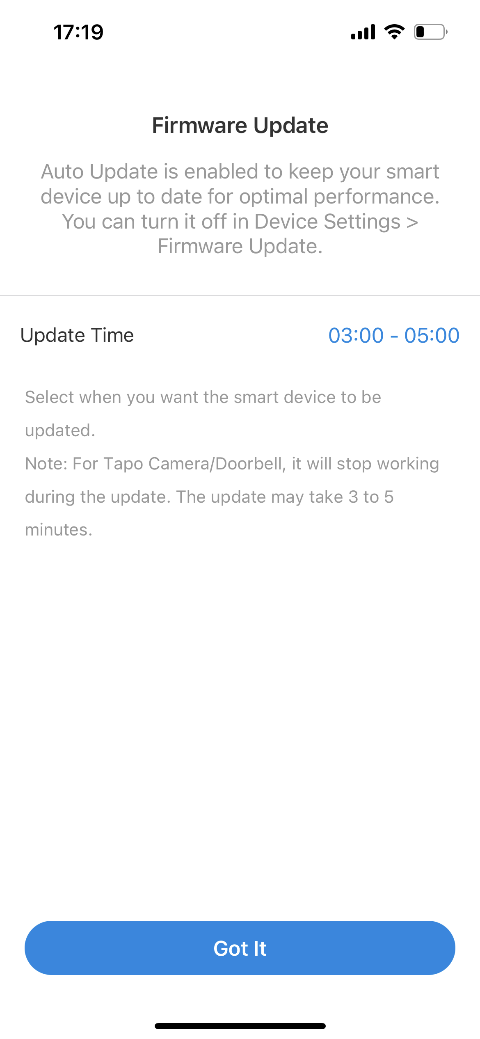
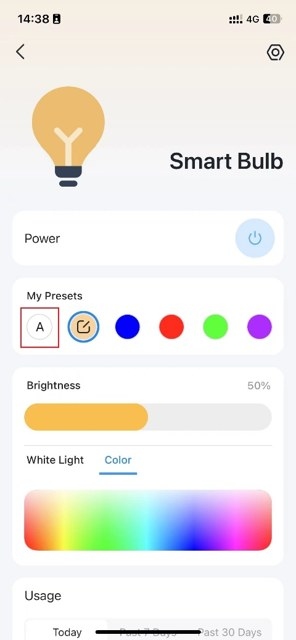
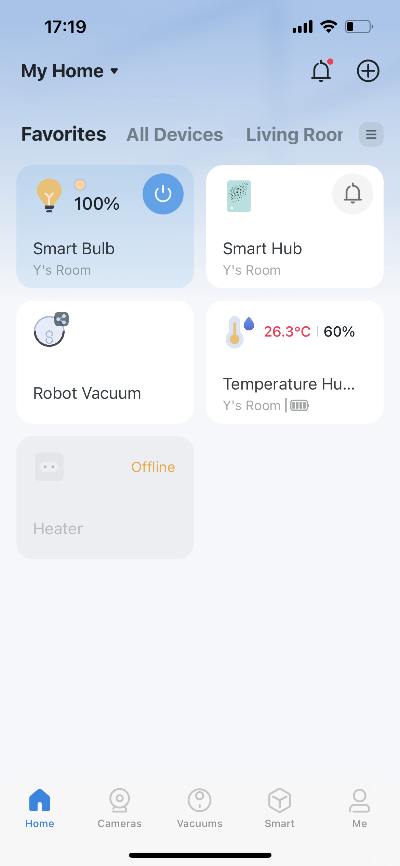
- Setup is complete, and the bulb is ready for remote control through the app.
Connect to a voice assistant
Once the bulb is on your home Wi-Fi, you can also manage it with Amazon Echo or Google Home. For configuration details, consult the FAQs about connecting Tapo devices (smart plugs, smart cameras and smart bulbs) to Google Home or making them work with Amazon Alexa.