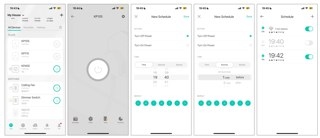
Use the Kasa app to connect a TP-Link Kasa smart plug to your home Wi-Fi. Once connected, it can also link to Amazon Echo or Google Home for voice control. The instructions use the HS110 as an example; the in-app photos and setup video at the bottom of the page provide visual guidance.
Prepare for Setup
- Install the Kasa app on your smartphone from the App Store or Google Play.
- Connect the phone to your home Wi-Fi using 2.4 GHz. The plug does not support 5 GHz networks.
- Insert the Kasa smart plug into a power outlet.
On iOS 14 and above, enable Local Network access for the Kasa app in the device's privacy settings before proceeding.
Step 1: Sign In to Kasa
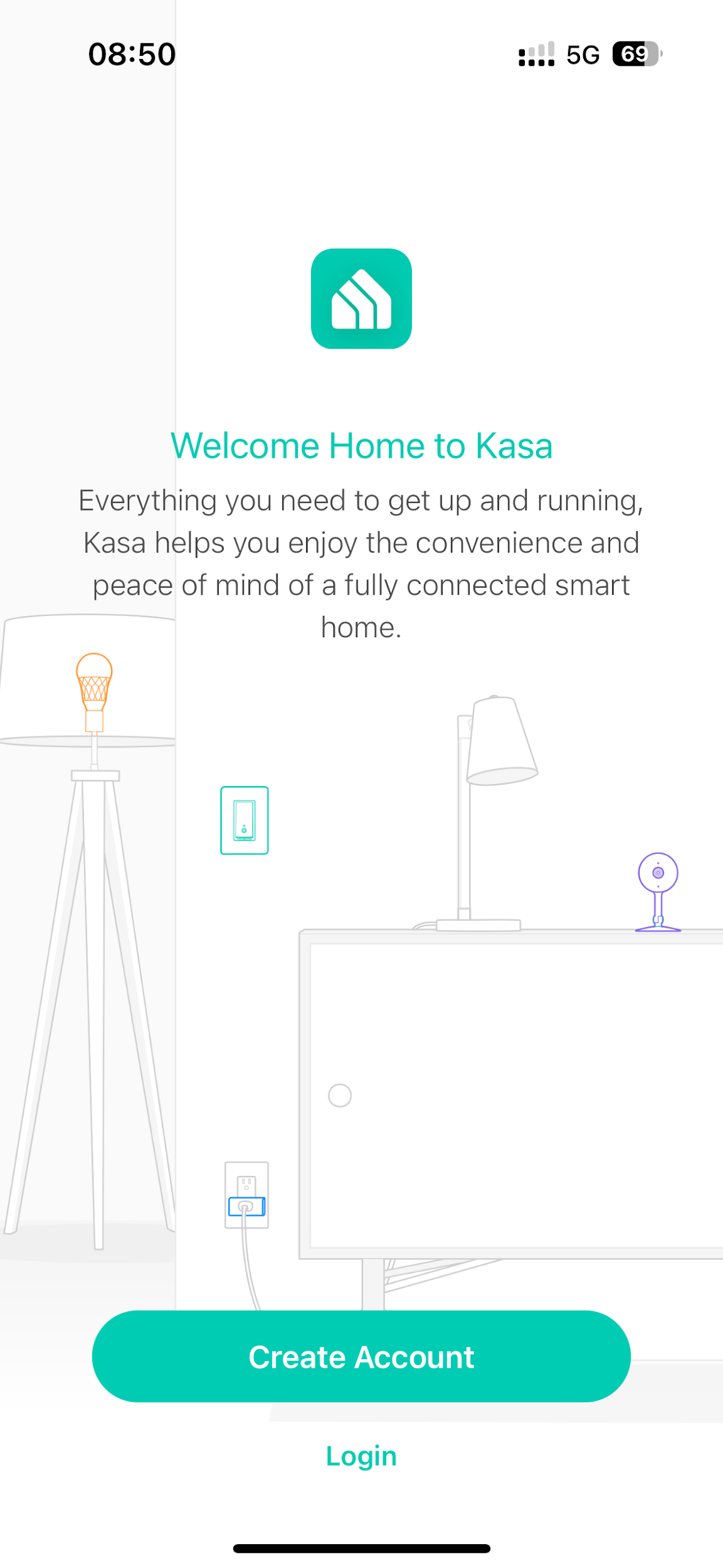
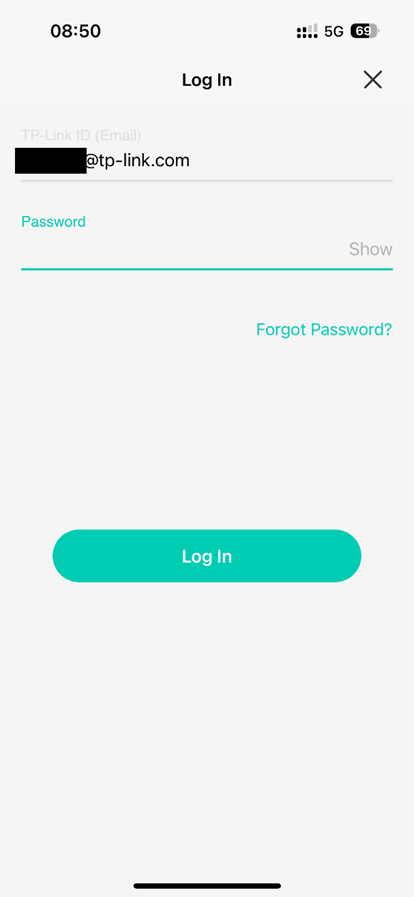
Launch the app and sign in with your TP-Link account. If you need an account, tap Create Account and complete the prompts; the guide How to create a TP-Link Cloud Account on Kasa provides further help. Otherwise, enter your email address and password, then tap Log In.
Step 2: Select Your Plug
On the home screen, tap +, followed by Device. Choose Smart Plugs, then select the icon for your plug's model number.
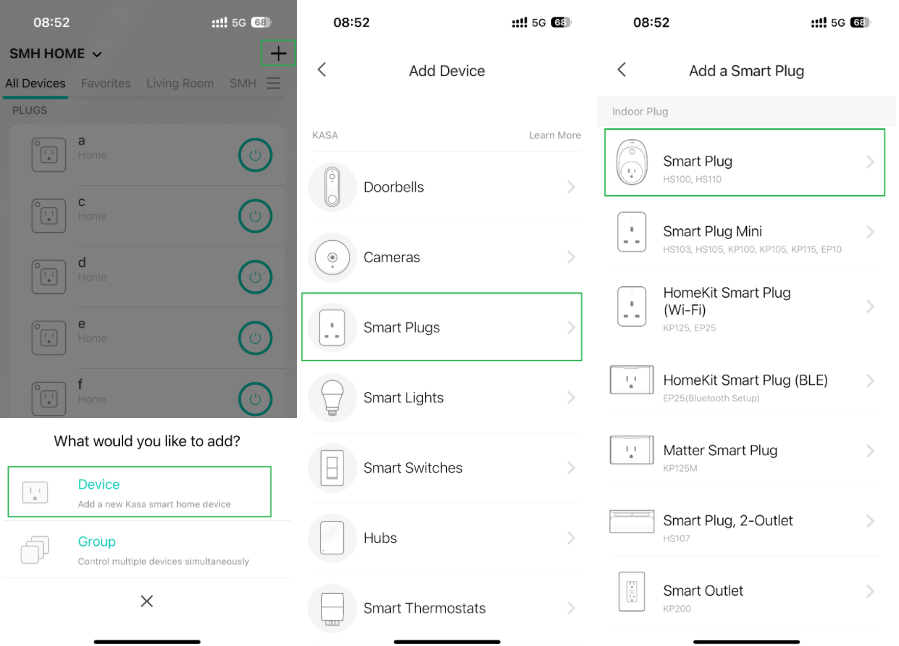
Step 3: Confirm Setup Mode
Follow the app's power-on instructions and wait until the Wi-Fi indicator flashes orange and green, indicating that the plug is ready for setup.
If the indicator does not flash these colors, follow the reset instructions in the User Guide or Quick Installation Guide. The guide How to Reset a Kasa Smart Plug or Smart Switch offers additional assistance.
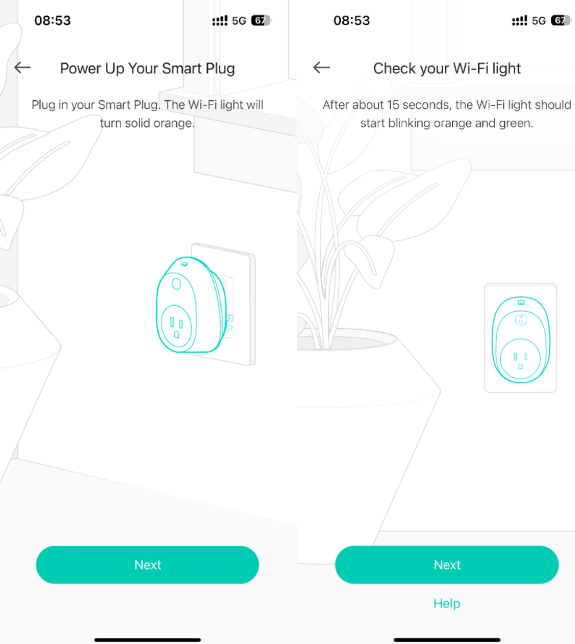
Step 4: Join the Plug's Wi-Fi Network
Android
Allow about one minute for Kasa to find the plug automatically. If the search does not finish, open the phone's Settings, then Wi-Fi, and connect manually as described for iOS below.
If an unsecured-network message appears, choose to stay connected or connect anyway, then return to Kasa.
iOS
Open Settings and then Wi-Fi. Join TP-LINK_Smart Plug_XXXX and return to Kasa to proceed.
A No Internet Connection warning after joining the plug's network is expected; continue in the Kasa app.
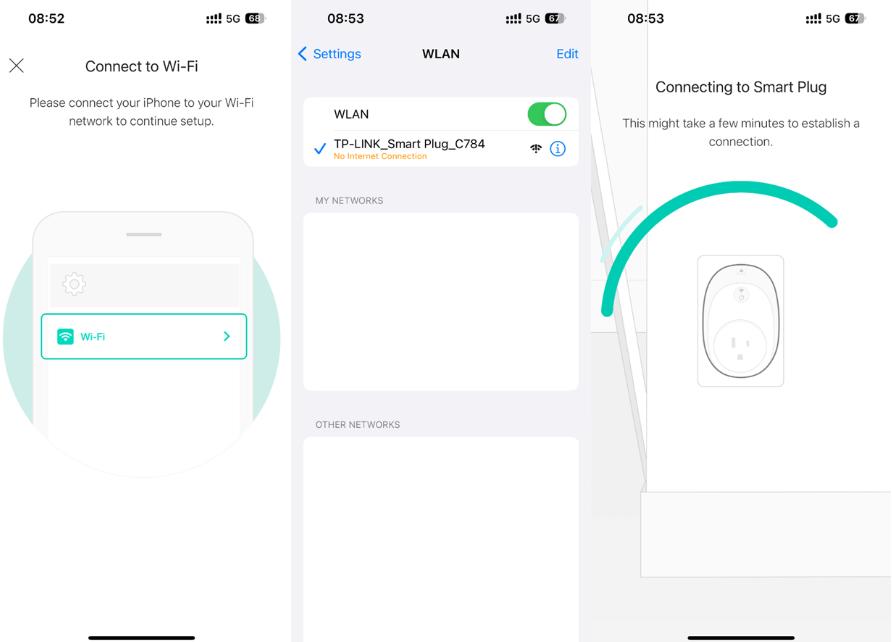
Step 5: Add Your Home Network
Choose your home Wi-Fi from the app's list. If it is missing, tap Join Other Network at the bottom and enter the network name (SSID) and password manually. Completing this step connects the plug to your home network.
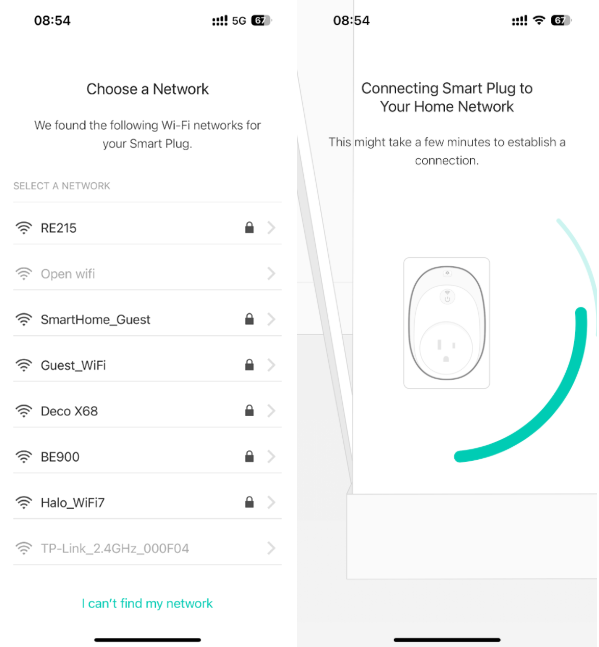
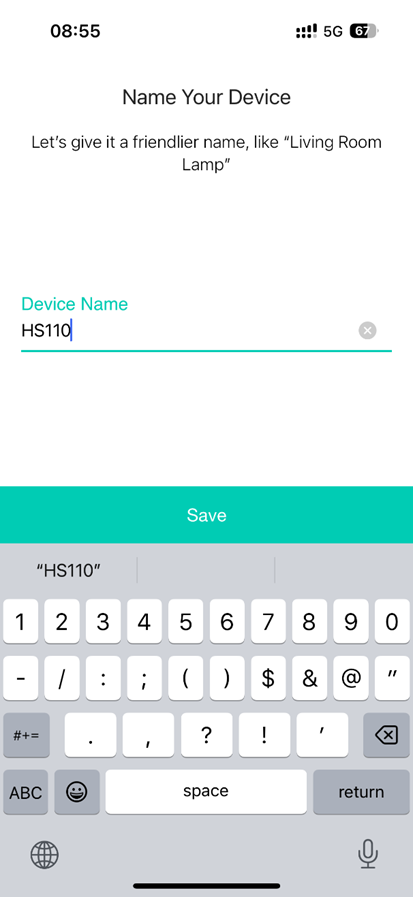
Step 6: Assign a Device Name
Enter a recognizable name, such as Living Room Lamp, to distinguish the plug from other devices in Kasa.
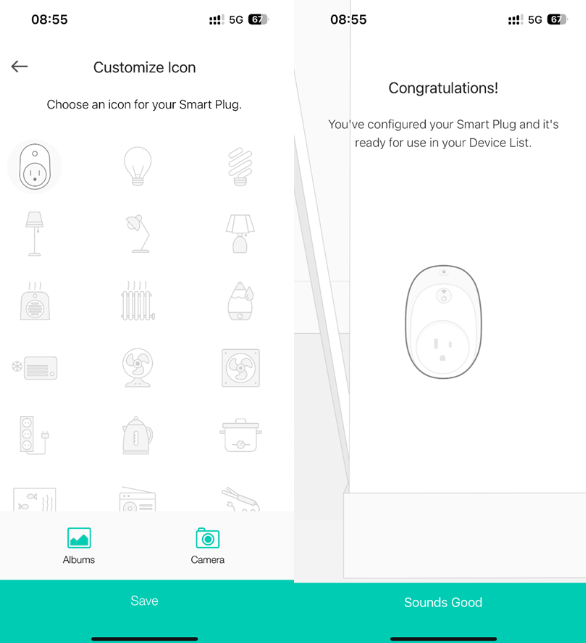
Step 7: Set the Device Icon
Pick an app icon, select a picture from the phone's photo library (Albums), or take a photo. Confirm your choice with Save.
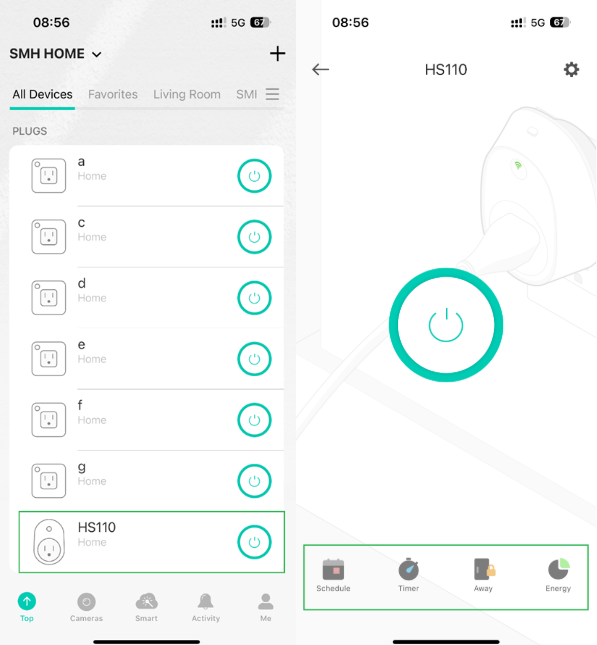
Step 8: Open Advanced Controls
Tap the plug's icon on the home screen to access its control page, including Schedule, Timer, and Away mode.
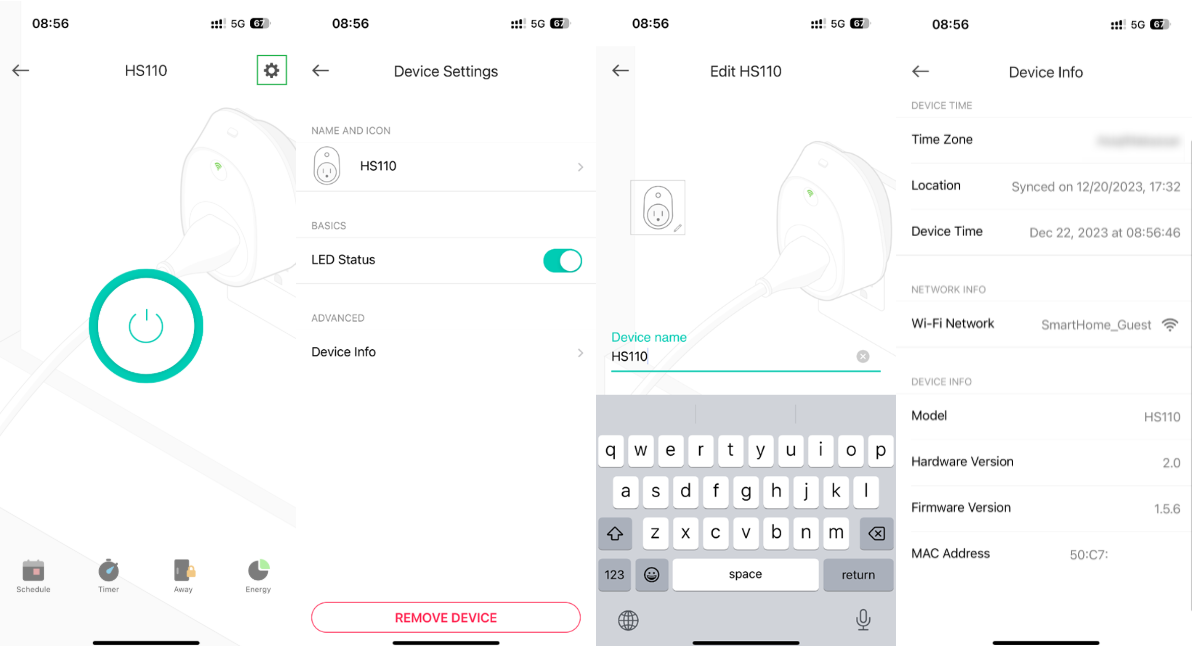
Step 9: Review Device Settings
From the control page, tap the settings icon to open Device Settings. Use Name and Icon to change those details, or Device Info to check the model number and firmware version.
If Setup Fails
Press the plug's reset button and repeat setup according to the User Guide or Quick Installation Guide. For further assistance, consult What should I do if I fail to configure a Kasa device? For disconnections after setup, consult What should I do if my Kasa device keeps losing connection or going offline?
Smart Home Connections and Further Guidance
After Wi-Fi setup, link the plug to Amazon Echo or Google Home for voice control. Related guides include:
- How to make a Kasa device work with Amazon Alexa
- How do I move my Kasa device to a different wireless network?
For the complete manual, search your model number in the TP-Link Download Center.