The Kasa app provides schedules, Away Mode and timers for Kasa smart plugs, bulbs and switches. Individual schedules are configured on the device page, while Smart Actions can control several devices together.
Create a Kasa schedule
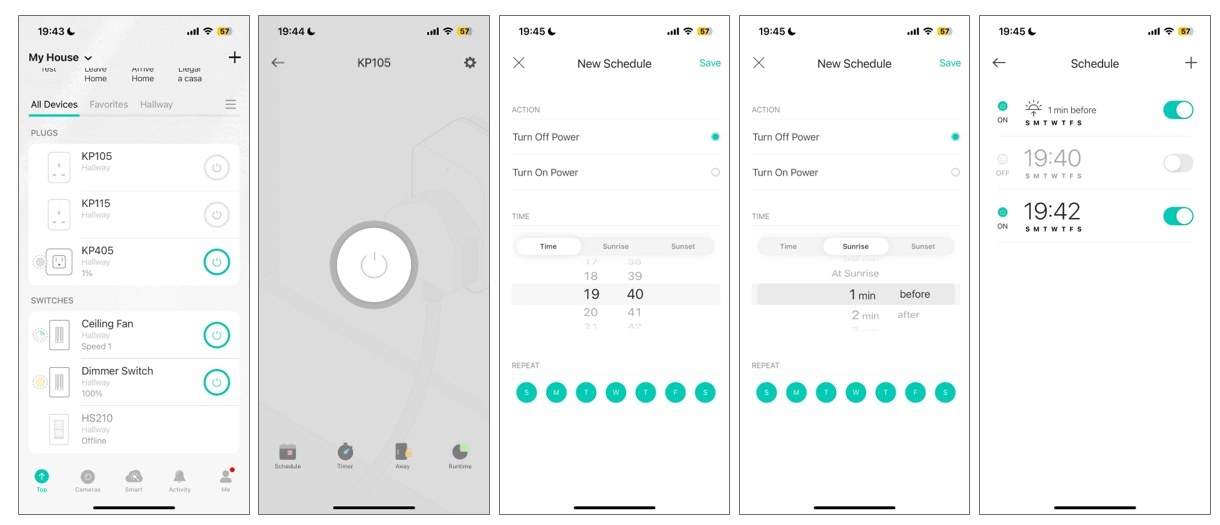
Schedule one device
- From the Kasa app Home page, tap the device card to open its page.
- Select Schedule, then tap + in the upper-right corner.
- Select Custom Time, Sunrise or Sunset. Sunrise and Sunset follow regional times and allow an offset.
- Choose the weekly Repeat days.
- Tap Save. You can subsequently enable or disable each schedule manually.
Schedule several devices
This method uses automation, so the devices must have an internet connection.
- In the Kasa app, open Smart, tap + at the upper right, and select Smart Actions.
- Tap Add Trigger and select Trigger Time. Choose Custom Time, Sunrise or Sunset, adding an offset for Sunrise or Sunset if needed.
- Set the weekly Repeat days and tap Done.
Sunrise and Sunset use regional times. To synchronize the time, go to Me > Settings > Location and Time. If synchronization is incorrect, consult the Kasa time sync troubleshooting guidance before configuring the automation.
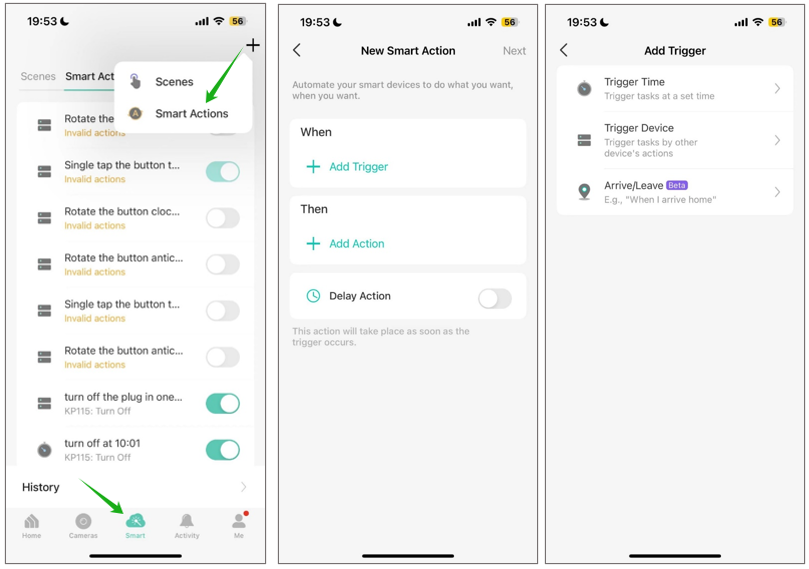
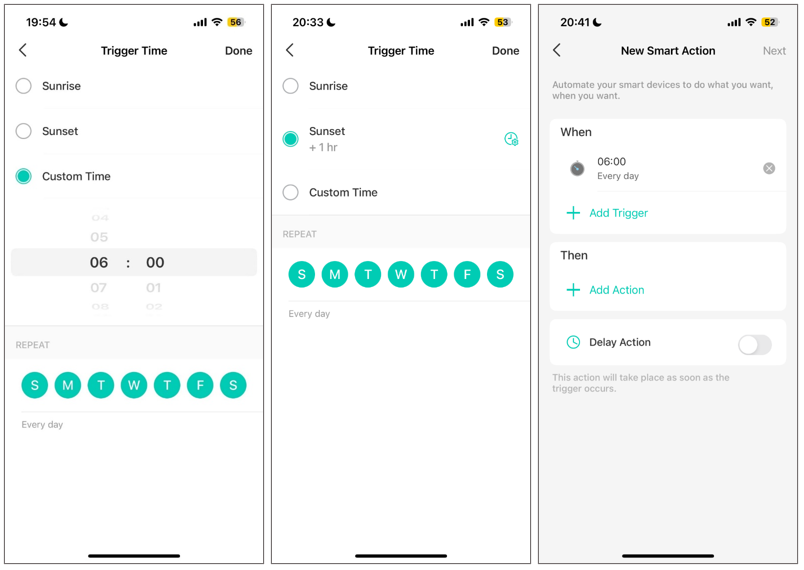
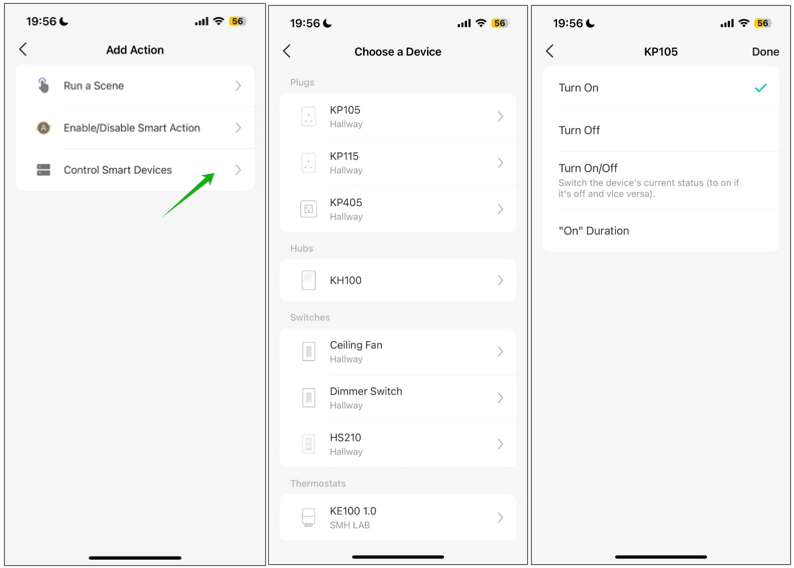
Next, tap Add Action and select Control Smart Devices. Add devices using either method below.
Add devices individually
Select a device, specify whether it should turn on or off, and add it to the action list. Repeat for every device the schedule should control.
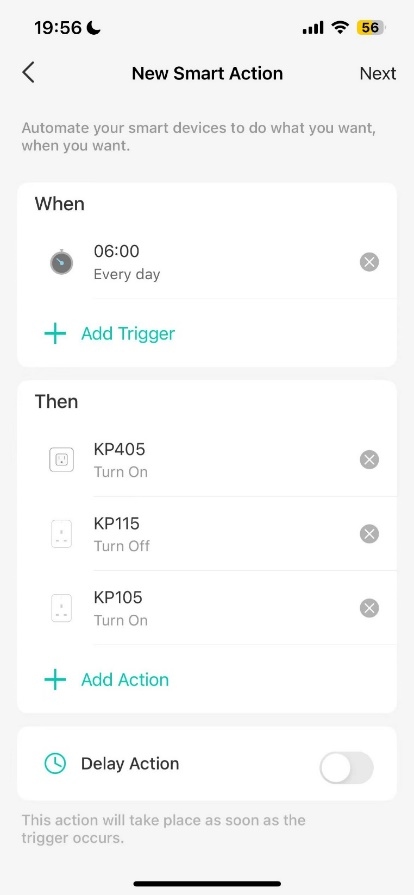
Devices can perform different actions at the same scheduled time—for example, switching KP405 on and KP115 off at 06:00.
Add a group
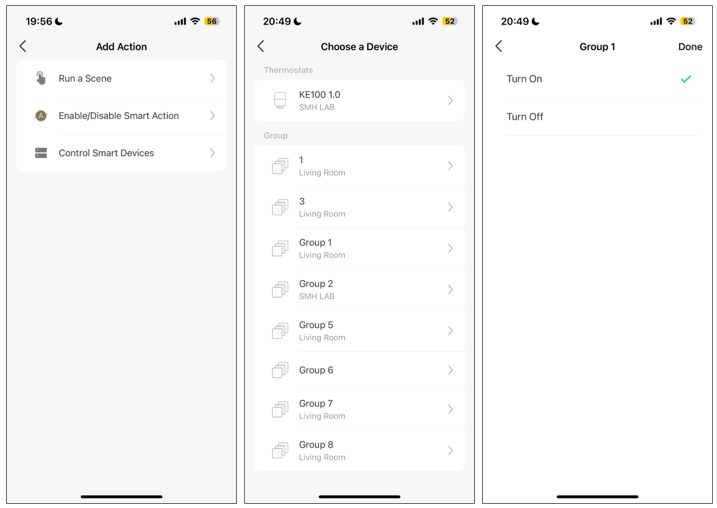
On the Home page, tap + at the upper right and choose Add Group to group the devices. Then add that group to the action list: select Control Smart Devices, find the Group section, and choose the group.
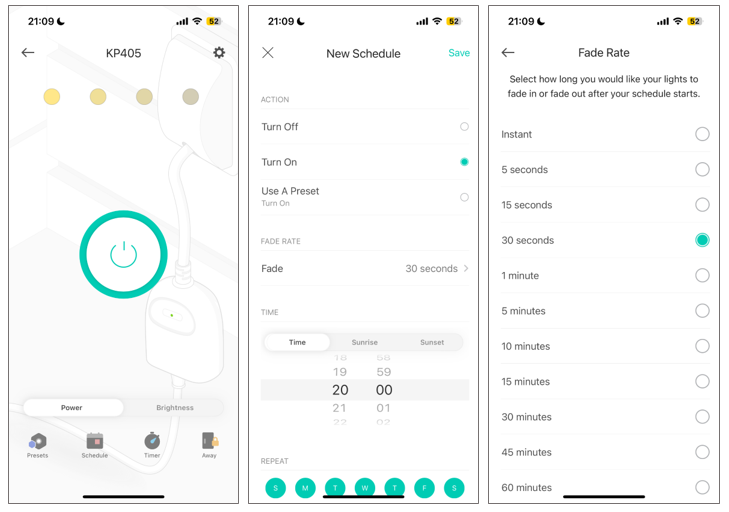
Schedule a dimmer to fade on or off
- Open the dimmer's device card from the Kasa app Home page.
- Select Schedule and tap + at the upper right.
- Choose Custom Time, Sunrise or Sunset. Sunrise and Sunset follow regional times, with optional offsets.
- Tap Fade and adjust Fade Rate to set how long the lights take to fade in or out.
- Choose the weekly Repeat days.
Configure Kasa Away Mode
Away Mode switches a device on and off randomly during a selected period to suggest that someone is home. The following procedure uses a Kasa smart plug.
- Tap the device card on the Kasa app Home page.
- Select the Away icon.
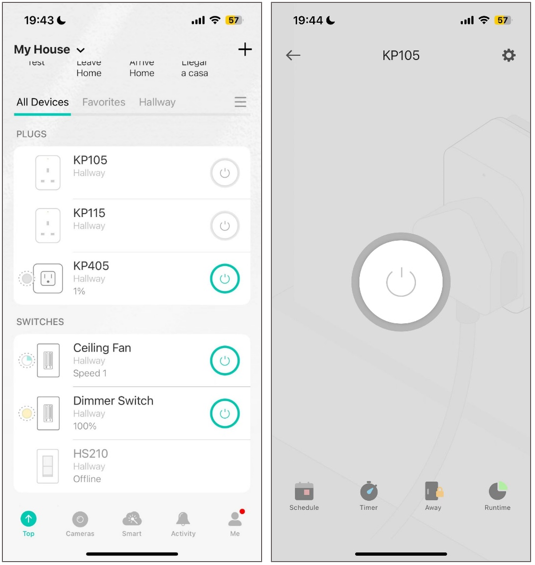
- Choose the start and end times using Custom Time, Sunrise or Sunset. Sunrise and Sunset support offsets.
- Select the weekly Repeat days.
- Tap Start to activate Away Mode. You can stop it from this page at any time.
Sunrise and Sunset reflect regional times. Use Me > Settings > Location and Time to synchronize the correct time.
Set a Kasa countdown timer
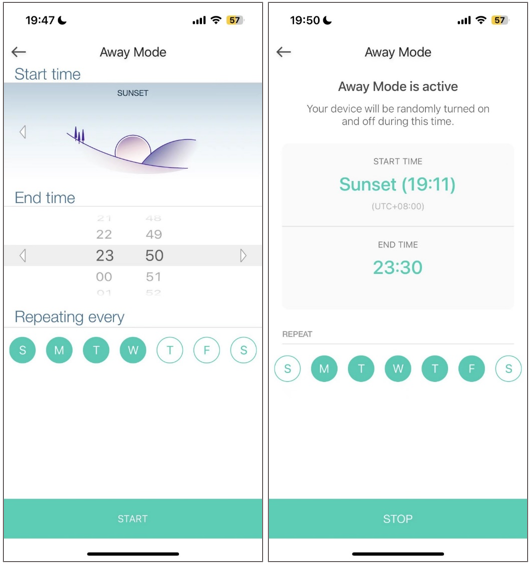
A timer switches the device on or off when the countdown ends.
- Open the device card on the Kasa app Home page.
- Tap Timer.
- Set the countdown duration and whether the device should turn on or off when it finishes.
Automatically turn a smart plug off after activation
An auto-off automation switches the connected appliance off after a specified interval each time it turns on.
- In the Kasa app, go to Smart, tap + at the upper right, and choose Smart Actions.
- Tap Add Trigger, then select Trigger Device.
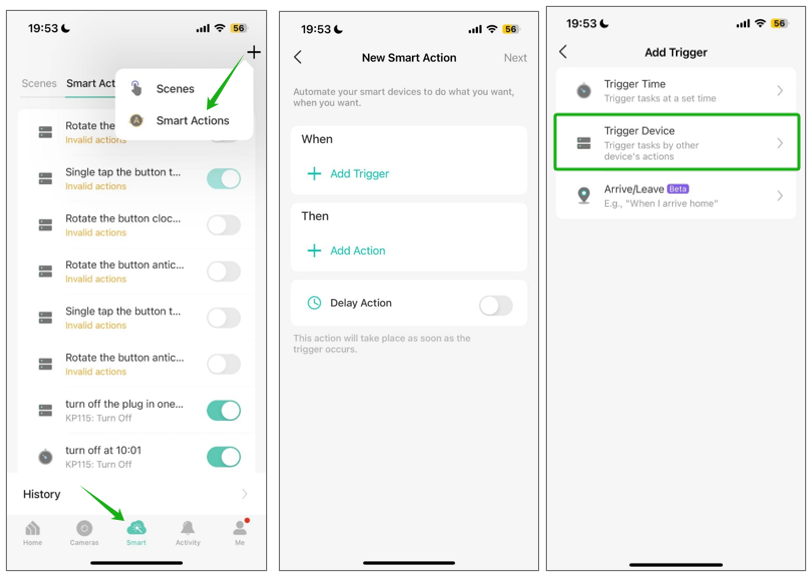
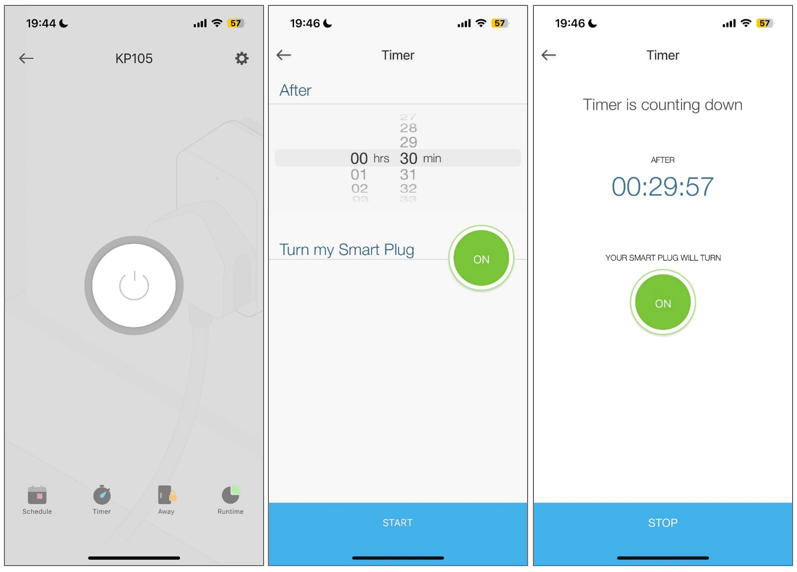
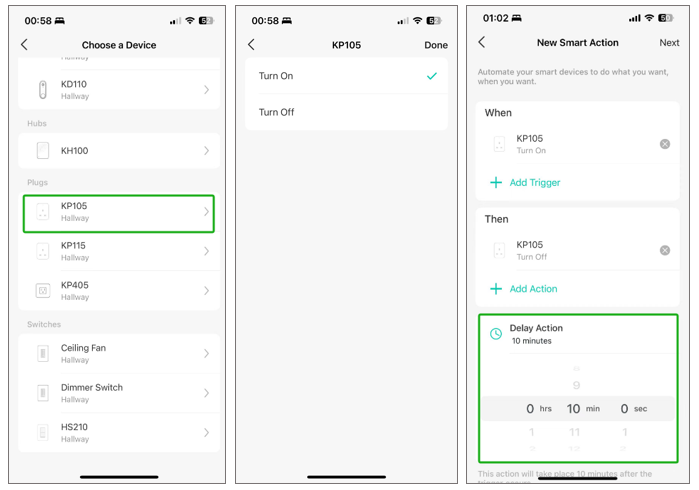
- Use the same smart plug for the Trigger and Action devices, with opposite ON/OFF operations. For example, use Turn on KP105 as the trigger and Turn off KP105 as the action.
- Set the interval with Delay Action, then tap Save. In the example, KP105 switches off 10 minutes after every activation.
Time zone questions
Does changing the phone's time zone change scheduled operation?
Schedules and related functions run according to the device's own time zone. Kasa does not provide individual device time zone settings; devices synchronize their time zone automatically with the Kasa app's time zone.
Changing the phone's time zone therefore does not change the scheduled runtime. To change a device's time zone, consult How to Adjust Time Setting in the Kasa APP.
Which time zone applies to a multi-device automation?
An automation containing several devices uses the first device's time zone. If it contains no devices, it uses the phone's time zone.