Tapo sensors display temperature and humidity records in the Tapo App and can export historical data for analysis or local storage.
Export temperature and humidity history
Tapo temperature and humidity sensor
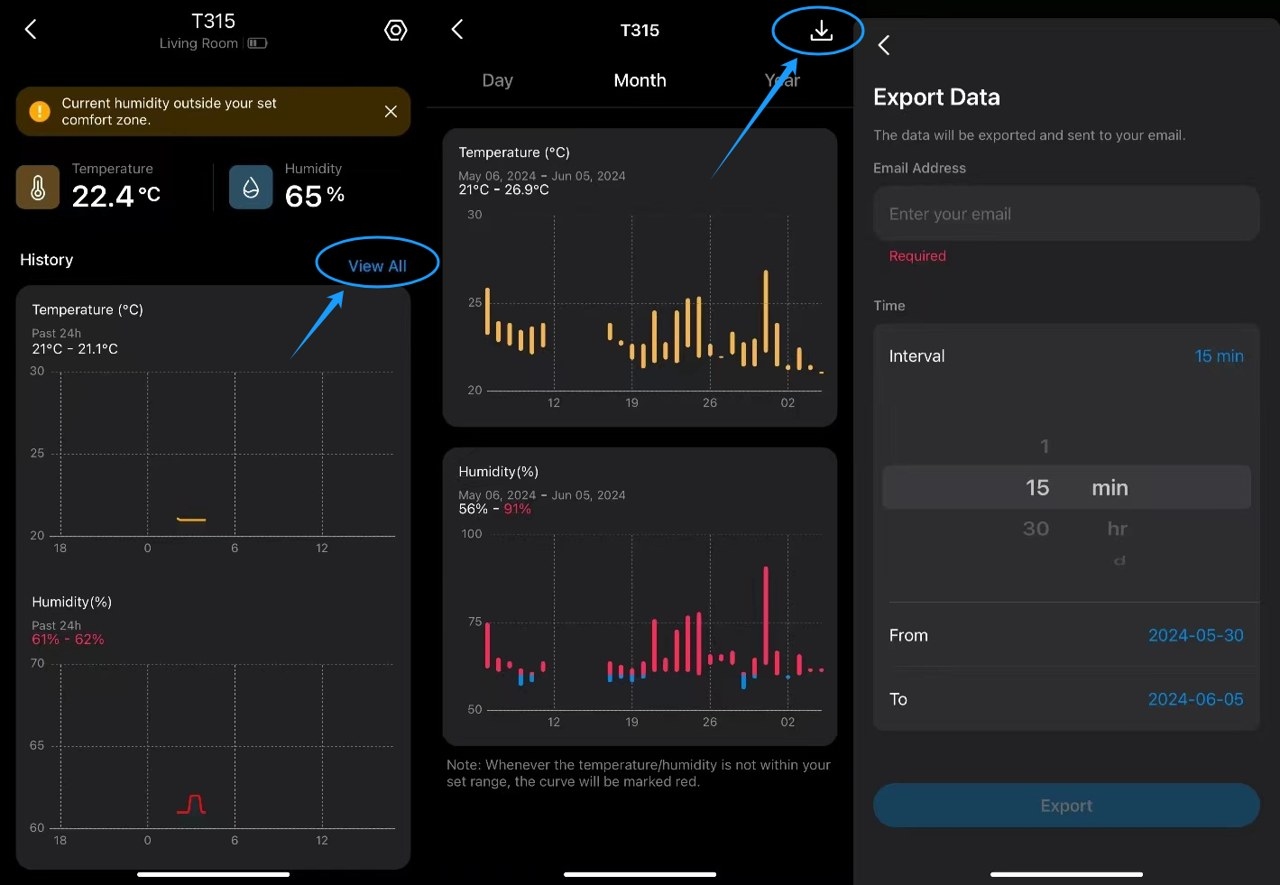
- In the Tapo App, open the temperature and humidity sensor's device page.
- Under History, select View All, then tap the download button at the upper right.
- Provide the email address that should receive the export.
- Choose the time interval and date range.
- Select Export.
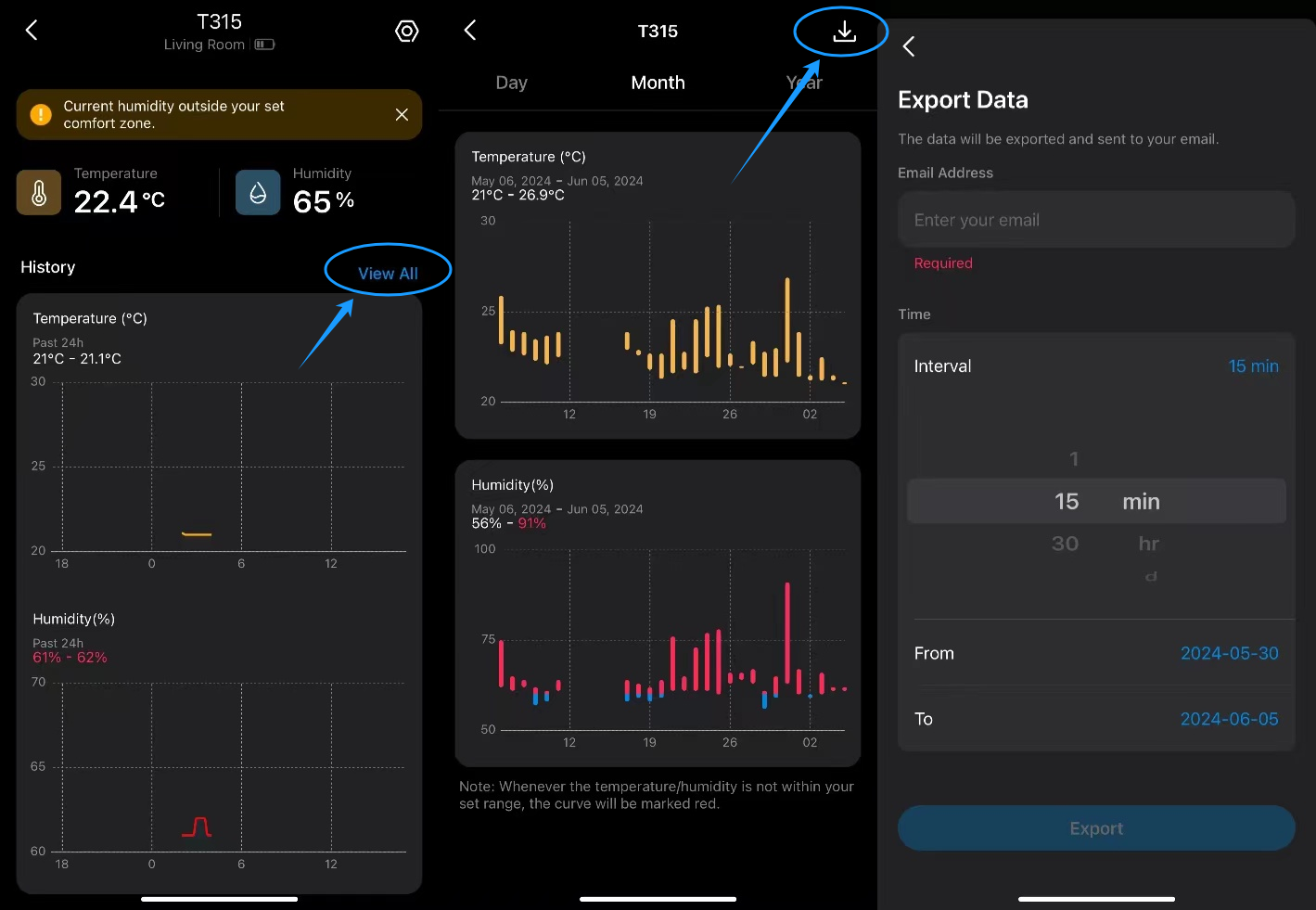
Records are retained for up to 2 calendar years. Available export intervals are:
- Minutes: 1, 15, 30 minutes
- Hours: 1, 6, 12 hours
- Days: 1 day
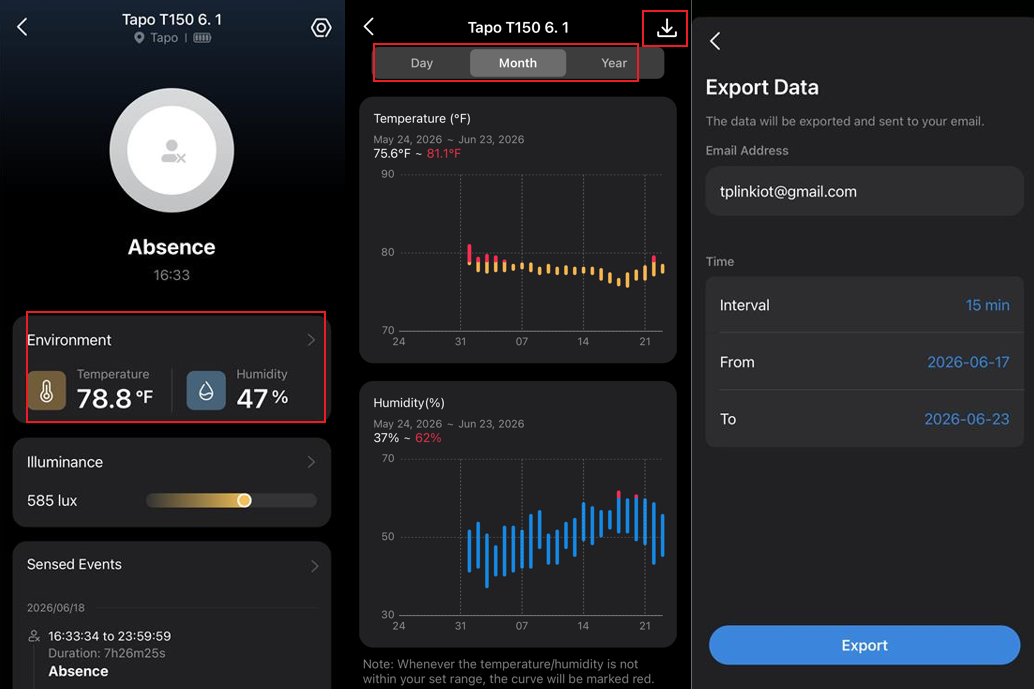
Tapo Smart Human Presence Sensor
- Open the Tapo app and navigate to the sensor's Device Page.
- Open the Environment Section.
- Choose Day/Month/Year, then tap the download button at the upper right.
- Enter the recipient email address, choose the interval and range, and select Export.
- Check your inbox for the exported records.
Export and history troubleshooting
The export email has not arrived
- Verify the recipient email address.
- Look in the spam folder.
- Check the receiving device's network connection, try another network, and refresh the inbox.
The app home page does not show immediate status changes
Refresh behavior depends on how you connect. On the same Wi-Fi network, sensor status refreshes about every 10 seconds, so a short delay is expected. With remote access, status updates in real time.
For Tapo T110, remote access shows open/closed changes in real time, but the last triggered time refreshes every 30 seconds. A delay of up to 30 seconds is normal and does not indicate a fault.
How long are records available?
Historical records cover the most recent 2 calendar years. Exports use the CSV file format.
Will resetting and pairing again erase the history?
Resetting the sensor alone does not erase its history. Pair it again with the same hub and choose “Keep” when the “Preconfigured Device” prompt appears to preserve earlier settings and records.
Other actions can permanently erase data:
- Removing either the sensor or its associated hub from the Tapo app deletes the sensor's history.
- On H100 and H110, a 5-second soft reset preserves history, but a 10-second factory reset deletes it.
- Resetting the H200 or H500 deletes historical records for connected sensors.
Deleted history cannot be recovered.
No historical records appear
Follow these steps to troubleshoot empty records.
Records are missing for particular periods
Check whether the hub went offline or restarted during the gap:
- If it reconnects without restarting, the hub can upload locally cached readings from approximately 24 hours before reconnection.
- After more than about 24 hours offline, earlier readings may be lost.
- A restart while offline clears the local cache. Readings collected during the outage before that restart cannot be recovered.
For details about product functions and configuration, download the relevant manual from the Download Center.