Matter is an open smart home connectivity standard that allows products from different brands to work across platforms. TP-Link’s Matter-enabled Tapo and Kasa plugs, bulbs, and switches support Alexa, Google Home, Apple Home, and SmartThings, letting you use your existing ecosystem without compatibility workarounds. For more background, see the article What Exactly is Matter?
Choose a Setup Method
Start with Tapo or Kasa (recommended)
TP-Link strongly recommends configuring devices in the Tapo or Kasa app first to retain access to every device feature and avoid potential compatibility problems. You can then add the device to a third-party Matter platform.
Timing matters: When starting with the Tapo app, you have 15 minutes from power-on to add the device to a third-party Matter-enabled app as well.
Set up directly in another platform
You can instead configure the device directly in Alexa, Google Home, Apple Home, or SmartThings, without using Tapo or Kasa. Platform-specific instructions are available in How to set up a Matter device with Alexa, Google, Apple, or SmartThings.
Use multiple platforms with multi-admin
Matter’s multi-admin feature lets several Matter-enabled apps control the same device simultaneously. A device configured in Apple Home, for example, can also be added to Google Home or SmartThings. See How to add your Matter-certified device into multiple controllers for the sharing procedure.
Compatible Matter Hubs and App Requirements
Most third-party smart home apps require a Matter hub, also known as a Matter controller. This may be a dedicated hub or a controller built into a speaker, display, or router.
The following hub lists were compiled in March 2026. Check with each manufacturer for its current list, and install the latest hub software or firmware to ensure Matter support.
Requires Google Home App version 2.62.1.15 or later.
|
Device Type |
Model |
|
Wi-Fi Routers |
Nest Wifi Pro (Wi-Fi 6E) |
|
Speakers |
Nest Audio, Nest Mini, Google Home Mini, Google Home (original) |
|
Displays |
Nest Hub (first-gen), Nest Hub (second-gen), Nest Hub Max, Google TV Streamer 4K |
Alexa
Requires Alexa App version 2.2.491118.0 or later.
| Device category | Compatible models |
|---|---|
| Echo / Echo Dot | Echo (2nd Gen and newer), Echo Dot (2nd Gen and newer), Echo Dot with Clock (3rd Gen and newer) |
| Echo Show | Echo Show 21, Echo Show 15 (1st and 2nd Gen), Echo Show 10 (3rd Gen), Echo Show 8 (1st, 2nd, and 3rd Gen), Echo Show 5 (1st, 2nd, and 3rd Gen) |
| Eero | eero 6 and eero 6+, eero Beacon, eero Max 7, eero PoE 6, eero PoE gateway, eero Pro, eero Pro 6E and eero Pro 6 |
| Other devices | Echo Input, Flex, Plus (v2), Echo Pop, Echo Spot, Echo Studio |
Apple
Requires iOS 16.2 or later.
|
Device Type |
Model |
|
HomePod |
Apple HomePod (second-gen), Apple HomePod Mini, Apple HomePod (first-gen, Wi-Fi only) |
|
Apple TV |
Apple TV 4K (3rd generation) |
With iOS 18 or later, Apple Home can add Matter-enabled devices without a Matter hub. Without a hub, however, Apple Home cannot provide remote accessory control, shared control, or automations.
Samsung SmartThings
On Android, SmartThings App version 1.7.91 or higher is required. On iOS, you need iOS 16.2 or higher and SmartThings App version 1.6.94 or higher.
| Device category | Compatible models |
|---|---|
| Smart Hub | Aeotec Smart Home Hub Aeotec Smart Home Hub 2 SmartThings Hub V3 |
| Other devices | SmartThings Station Select Samsung QLED / Neo QLED / OLED TV (2023 and later) Select Samsung The Frame / The Serif TV (2024 and later) Select Samsung Bespoke AI Laundry Combos, Family Hub Fridges, Projectors, Smart Monitors and Soundbars |
For Tapo- and Kasa-specific hub information, consult Matter questions and answers for Tapo and Kasa hubs.
Locate or Recover the Matter Setup Code
The setup code appears on the device casing, with an extra code sticker supplied in the packaging. Look in these locations:
- Smart plug: On the side of the casing.
- Smart bulb: Around the middle of the casing, between the light sphere and bulb base.
- Smart switch: On the casing’s side, near the button.
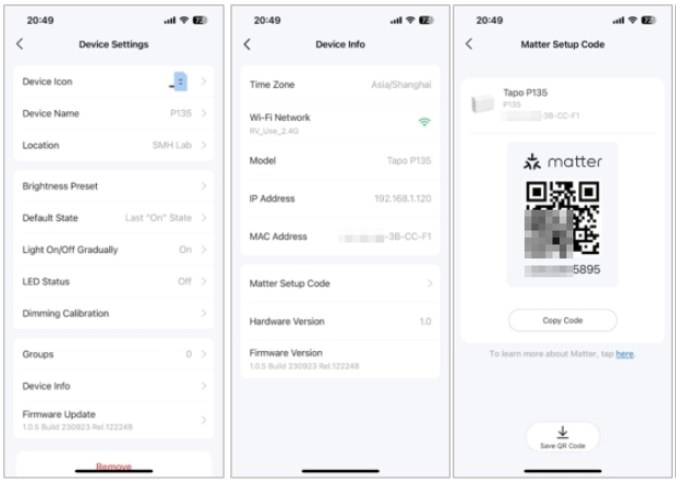
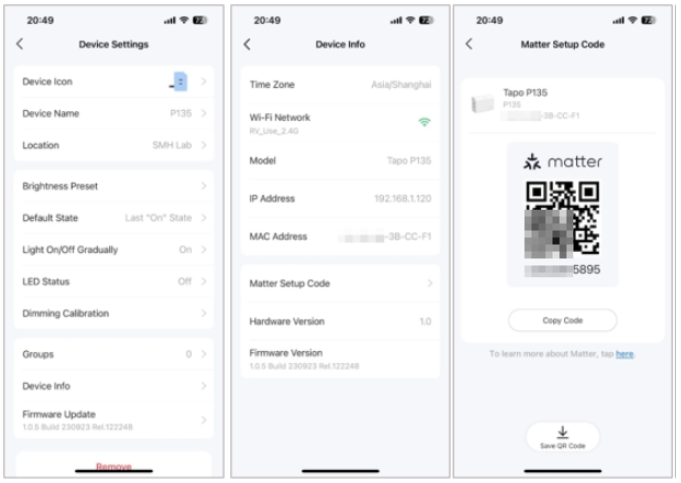
If the printed code is illegible or the sticker is missing, retrieve a digital copy through Tapo:
- Configure the device in the Tapo or Kasa app.
- In the Tapo app, select your Matter device.
- Tap the gear icon at the top right to open Device Settings.
- Open Device Info, then tap Matter Setup Code.
- Save the code to your phone’s photo album for later use.
Troubleshoot Setup and Control
Third-party setup fails
Before retrying setup in a third-party Matter app, check these items in order:
- Verify that both the smart home app and hub support Matter.
- Check that your phone and hub are on the same Wi-Fi network.
- Ensure your phone’s Bluetooth is enabled.
Further guidance is available in Troubleshooting for Tapo and Kasa Matter configuration on a third-party platform.
The hub disconnects or is removed
A Matter device becomes unresponsive if its hub disconnects from the router or is removed from the app. Control returns when the hub reconnects to the router.
A device is removed from connected apps
Deleting a device from one Matter app does not prevent control through other connected apps. If you remove it from every Matter app, restarting or resetting it may be necessary to restore Matter pairing mode.
Removing a device from Tapo or Kasa is different: This triggers a factory reset, leaving the device unresponsive in all other connected apps.
Restore factory settings
Press and hold the Reset button for at least 10 seconds to restore factory defaults and re-enable pairing mode. Follow the relevant device guidance:
- Smart plug: Use the power button, which doubles as the Reset button.
- Smart switch: Find the Reset button below the on/off button.
- Smart bulb: Switch the bulb off and on three times for Tapo bulbs or five times for Kasa bulbs, with a one-second pause between cycles. Wait for three blinks to confirm the reset.
For setup through a Deco system, consult How to add a Matter device on your Deco.