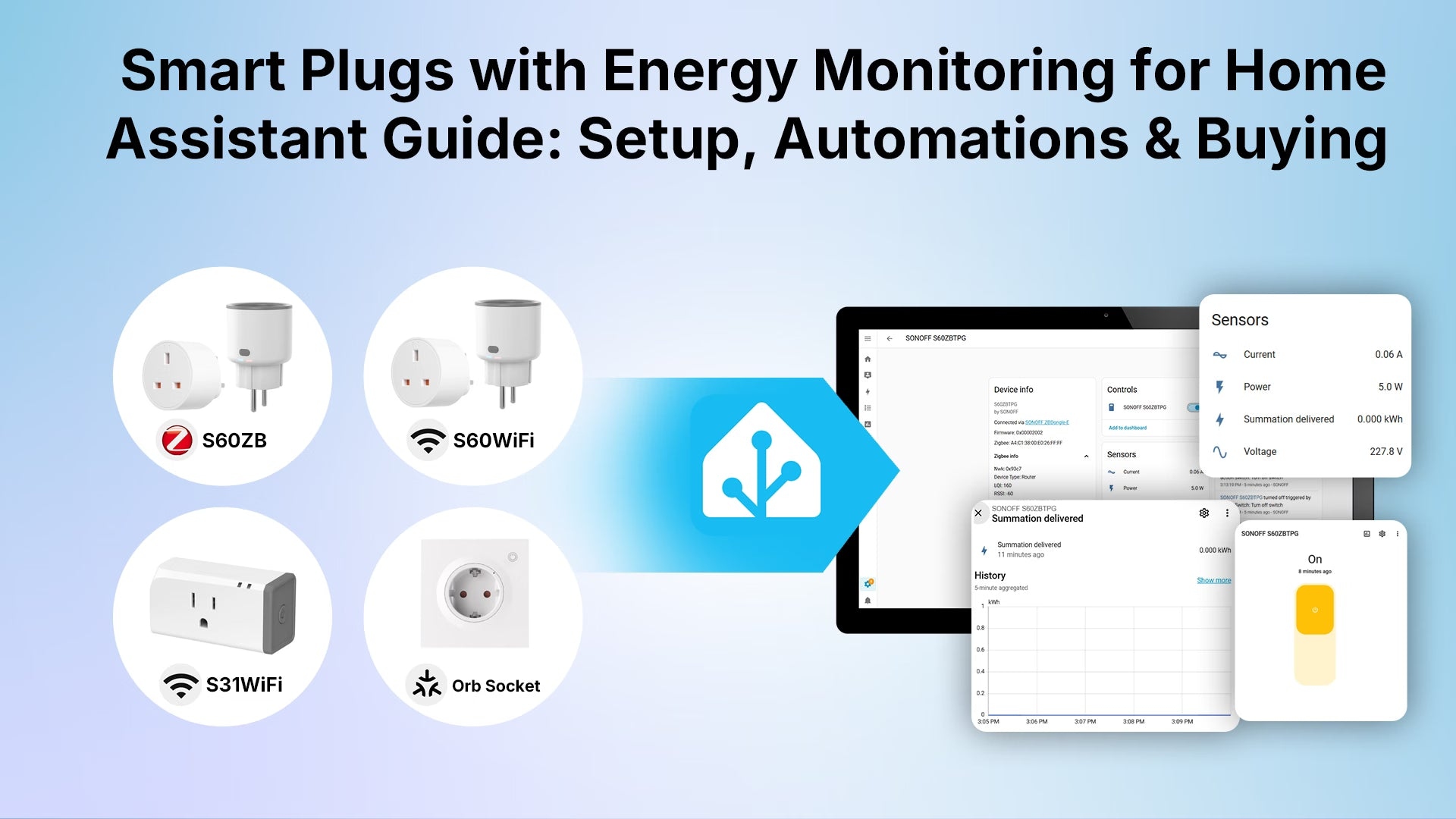
An energy-monitoring smart plug combines remote switching, scheduling and automation with electricity measurements. In Home Assistant, those measurements can reveal high consumption, detect standby waste, signal completed appliance cycles and flag unusual behavior.
Understand power and energy measurements
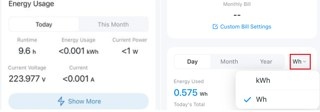
Depending on the device, a plug can expose real-time power (W), voltage (V), current (A) and cumulative energy (kWh) for dashboards, automation triggers and long-term tracking.
- Power (W) describes the electricity a device is using now.
- Energy (kWh) measures consumption accumulated over time.
A device drawing 100W for 10 hours uses 1 kWh. Automations generally rely on power readings, whereas the Energy Dashboard requires cumulative energy.
These readings let you compare appliances, identify large consumers and find equipment that runs too long or draws standby power. Power patterns can also indicate cycle completion, charging completion or idle operation more accurately than fixed timers. Changes in longer-term patterns may point to abnormal operation or potential faults.
Choose suitable appliances and plugs
Start with appliances that consume substantial electricity, operate for long periods or have predictable power patterns useful for automation.
|
Category |
Typical Devices |
Why Monitor? |
|
High-energy appliances |
Dryers, electric water heaters, portable heaters |
Identify the largest electricity consumers |
|
Always-on devices |
Routers, NAS, desktop PCs, monitors, gaming consoles |
Track baseline and standby power usage |
|
Cycle-based appliances |
Coffee makers, bread makers, rice cookers, slow cookers, dishwashers, 3D printers |
Estimate energy per cycle and trigger completion automations |
|
Charging devices |
Phones, tablets, portable power stations, e-bike chargers, power tools |
Detect charging completion and automatically cut power |
Safety: Never exceed a plug's rated voltage, current or power. Critical medical equipment, industrial equipment, three-phase appliances and motors or compressors with high startup loads require hardware specifically designed and rated for those applications.
Compare communication protocols
- Zigbee: Provides local control, low latency, stable mesh networking and low power consumption, but needs a Zigbee coordinator. It is often suitable for larger Home Assistant installations.
- Wi-Fi: Connects directly to a router without a hub. Setup is straightforward, but integration quality and local control depend on the implementation. Confirm official or community Home Assistant support before buying.
- Matter: Offers local control, cross-platform interoperability and easy pairing. Home Assistant support continues to develop, and features vary by device.
- Z-Wave: Offers local control, low latency and stable mesh networking comparable to Zigbee, with higher costs and fewer product choices.
Check reporting, compatibility and safety
- Energy reporting: Look for reliable cumulative energy (kWh), not only power (W), for long-term tracking and the Energy Dashboard.
- Integration: Verify support through ZHA, Zigbee2MQTT, Matter or an official/community integration. Available entities may include power, energy, voltage, current and switching, depending on the device.
- Local operation: Local control offers faster responses, greater stability and better privacy, and continues working without internet access.
- Reporting interval: Frequent updates improve power-based detection. Slow reporting can delay triggers or reduce accuracy.
- Regional fit: Match socket type and voltage standards for the US, UK, EU or AU. Check dimensions so the plug fits and does not obstruct neighboring outlets.
- Load capacity: Match the appliance's rated load; plug ratings are typically 10A–16A, depending on the model.
- Protection and certification: Look for overload, overheat and surge protection, plus appropriate regional certifications such as CE or UL.
To check local plug types, voltage and frequency, consult the IEC World Plugs reference.
SONOFF options for different installations
The following SONOFF models provide energy monitoring through Zigbee, Wi-Fi or Matter. For a new installation, choose the protocol first, then match the product to your region and installation requirements.
|
Model |
Protocol |
Region |
Max Load |
Energy Monitoring |
Best For |
|
S60 ZB |
Zigbee |
Type E/F, Type G |
16A / 4000W (E/F) |
✅Yes |
Zigbee users who want local control and mesh networking |
|
S60 Wi-Fi |
Wi-Fi |
Type E/F, Type G |
16A / 4000W (E/F) |
✅Yes |
Users who prefer a simple Wi-Fi setup without a hub |
|
S31 Wi-Fi |
Wi-Fi |
North America |
15A / 1800W |
✅Yes |
US users looking for an easy plug-and-play solution |
|
Orb Socket |
Matter over Wi-Fi |
EU (Type E/F) |
16A / 4000W |
✅Yes |
European users who prefer a built-in wall socket with Matter |
S60 ZB
Listed price: $14.90.
- Zigbee 3.0 with ZHA and Zigbee2MQTT compatibility.
- Built-in Zigbee router to extend mesh coverage.
- Local operation for Home Assistant automations.
- Real-time power, cumulative energy and historical consumption monitoring in Home Assistant.
This option suits an existing Zigbee system needing energy data, local control and expanded mesh coverage.
S60 Wi-Fi
Listed price: $12.90.
- Direct Wi-Fi connection without an additional hub.
- Daily, monthly and yearly consumption statistics.
- LAN control for local operation when available.
- Compact Type E/F design intended to fit most outlets without obstructing adjacent sockets.
It suits users seeking a straightforward, hub-free Wi-Fi installation.
S31 Wi-Fi
- Designed for North American outlets.
- A compact form described as Type E/F that helps keep neighboring outlets accessible.
- Wi-Fi connectivity and energy monitoring.
- Plug-and-play setup: connect the appliance and join the Wi-Fi network.
It is presented as an affordable, simple energy-monitoring option for US Home Assistant users.
Orb Socket
Listed price: $19.90.
- Built-in EU Type E/F wall socket for permanent installation.
- Matter over Wi-Fi compatibility.
- Integrated consumption monitoring with visual charts, historical data review and a one-tap reset when changing appliances.
- Overload and surge protection, plus a child safety design.
- Support for Home Assistant and Matter-compatible platforms including Apple Home, Google Home, Amazon Alexa and SmartThings.
This model suits European users who prefer an integrated outlet over a plug-in adapter and want Matter compatibility for later upgrades.
Connect the plug to Home Assistant
Zigbee setup
Choose either ZHA, which is built into Home Assistant and recommended for beginners, or Zigbee2MQTT, an MQTT-based option with broader device support and advanced features.
Required hardware and software:
- A Zigbee coordinator, such as ZBDongle-P or ZBDongle-E.
- For Zigbee2MQTT only, the MQTT broker Mosquitto and Zigbee2MQTT add-on.
Pair the plug and add it through your chosen integration. Home Assistant creates supported entities automatically, which may include power, energy, voltage, current and switch control. For further instructions, consult Add Zigbee Devices to Home Assistant via ZHA and Zigbee2MQTT.
Matter setup
Most Matter sockets connect directly through Home Assistant's built-in Matter integration. You need:
- Home Assistant OS with the latest Home Assistant version installed.
- The Matter integration installed in Home Assistant.
- The Home Assistant Companion App on your phone.
- A Matter device with its QR code or 11-digit setup code.
Open the Home Assistant mobile app, scan the Matter QR code and finish pairing. The device then becomes available for dashboards and automations. Further instructions are provided in How to Add Matter Smart Plugs to Home Assistant.
Wi-Fi and Matter plugs do not require a Zigbee coordinator.
Wi-Fi setup
Wi-Fi defines the network connection, not device control. Manufacturers commonly use proprietary control methods, so integration support varies by brand. Options include official brand integrations, where supported, and HACS community integrations.
- Use the manufacturer's official app to connect the plug to Wi-Fi.
- Install the appropriate integration from Home Assistant or HACS.
- Open Settings → Devices & Services in Home Assistant.
- Add the integration and complete its setup instructions.
For SONOFF Wi-Fi devices, consult the official add-on integration and tutorial.
Build automations from energy data
Power and energy readings allow Home Assistant to react to appliance behavior rather than fixed schedules. Suitable thresholds vary by appliance.
Detect a completed appliance cycle
- Use an increase in power to identify that the appliance has started.
- Wait until power stays at a low or idle level for several minutes.
- Send a notification or switch the plug off.
Examples include 3D printers, bread makers, rice cookers, slow cookers and dryers, provided their rated loads stay within the plug's specifications. Coffee makers and dishwashers may also have usable cycle patterns. A 3–5 min delay helps avoid false triggers during brief operating pauses and reduces the need to check completion manually.
Detect standby power and shut down idle devices
- Detect power remaining below a defined standby threshold.
- Cut power to the appliance automatically.
- Optionally send a notification.
TVs, monitors, game consoles and speakers are common candidates. This can reduce phantom consumption and unnecessary electricity costs.
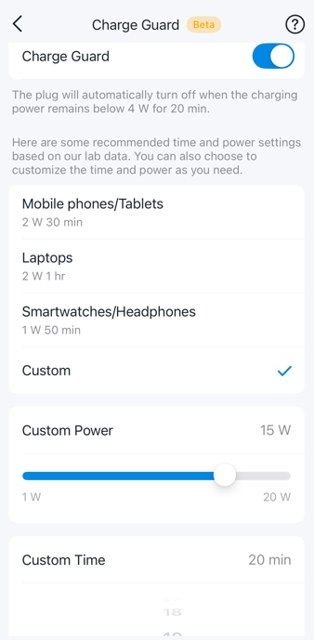
Detect charging completion
- Monitor for charging power to fall below a defined threshold.
- Have Home Assistant identify completion.
- Switch the plug off or send a notification.
Possible applications include phones, tablets, portable power stations, e-bikes and power tools. Reducing unnecessary charging time can save energy and provide an additional layer of safety.
Alert on high energy use
- Track cumulative consumption (kWh) for an appliance or period.
- Notify when usage exceeds a predefined threshold or energy limit.
Examples include water heaters, portable electric heaters, dehumidifiers and other high-consumption appliances. EV chargers are suitable only when the charging load stays within the plug's rated capacity. Alerts can help track costs, identify large consumers and avoid unexpected bills.
Which measurement should an automation use?
|
Automation |
Primary Metric |
|
Appliance Finished Notification |
Power (W) |
|
Standby Power Detection |
Power (W) |
|
Charging Completion Detection |
Power (W) |
|
High Energy Usage Alerts |
Energy (kWh) |
Safety: Before enabling any automation, verify that the appliance stays within the plug's rated voltage, current and power limits. Check manufacturer specifications and use specialized equipment where required.
Common monitoring questions
Can a plug provide both live readings and long-term tracking?
Yes, if it reports both power (W) and cumulative energy (kWh). Home Assistant can use them for dashboards, long-term statistics and behavior-based automations. A power-only plug remains useful for automation but cannot provide complete Energy Dashboard functionality.
Why is consumption missing from the Energy Dashboard?
The plug may report only power rather than cumulative energy, its integration may not expose the necessary entity, or long-term statistics may be unavailable. Check the integration settings, firmware version and Home Assistant entity configuration to identify the cause.
Will monitoring lower electricity bills?
It can, but savings depend on how you act on the readings. Identifying high-consumption appliances, reducing standby use and automating unnecessary operation can lower wasted electricity over time.